
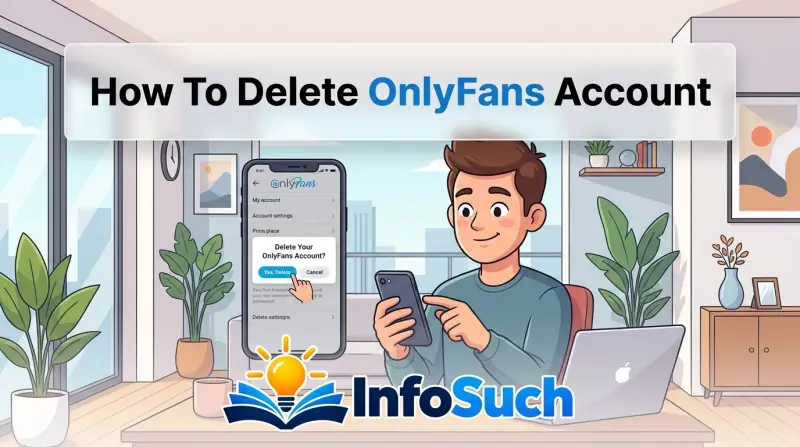
You're staring at the screen, logged in, ready to vanish from OnlyFans. But there's no big red button waiting for you. That's the first thing everyone discovers when they search for how to delete onlyfans account and finally commit to the process.
The truth is, the deletion path forks based on who you are on the platform. Creators with published content face a different menu than fans who just subscribe. Get the steps wrong, and you'll waste half an hour clicking through menus that lead nowhere.
We've reviewed the platform's official help documentation, payment processor requirements, and verified user reports to map out every route. By the end of this guide, you'll know exactly which path applies to you. You'll be done in under five minutes.
Are You Stuck? Here's Why Deletion Feels Impossible
Here's the cold truth about OnlyFans. There isn't one universal "Delete My Account" button. The menu options you see depend entirely on your account classification.
If you've ever posted a photo or video intending to sell it, you're a Creator. If you only browse and subscribe to others, you're a Fan. The platform tags your account internally, and that tag changes everything.
Most people get stuck because they're looking for a button that doesn't exist on their screen. Creators hunting for a mobile deletion option will never find it. OnlyFans restricts that feature to their desktop interface to prevent accidental permanent erasure of paid content.
Fans, on the other hand, can delete directly from the app, but only after every active subscription is cancelled.
The confusion multiplies when you mix in financial holds. Active subscriptions and uncleared payout balances both block the deletion process. The platform won't let you nuke your account while there's money moving through it.
That's a deliberate safeguard, not a glitch. If you're hitting walls, it's almost always one of these two roadblocks.
Let's run a quick self-check. Are you seeing "Delete Account" in your settings? If yes, you're a fan with no pending subscriptions.
If no, you're either a creator or you have money left on the table. The next sections break down exactly what to do in each scenario.
The Quick Answer: 60-Second Deletion Guide
If you just want the short version, here it is. Fans can delete directly from the mobile app. Creators must log in via desktop browser.
Before either path works, every subscription must be cancelled. Creators also need a pending balance of exactly zero.
For fans:
- Open the OnlyFans app or website.
- Tap your profile icon.
- Go to Settings.
- Cancel any active subscriptions.
- Scroll to the bottom.
- Tap Delete Account.
- Confirm your choice.
For creators:
- Log in on a computer.
- Cancel all subscriptions.
- Withdraw all earnings to your bank.
- Click your profile picture.
- Scroll down to the bottom of the menu.
- Click Delete Account.
- Confirm and wait out the 7-day grace period.
That's the whole process. The rest of this guide covers the tricky parts, the mistakes that break the flow, and the details that keep people stuck for weeks. If you hit a greyed-out button or a missing link, the next sections explain why and how to fix it.
Before You Delete: Two Non-Negotiable Prerequisites
You can't just waltz in and hit delete. OnlyFans built two gates you must pass through first. Fail either one, and the deletion option stays hidden or greyed out.
Gate 1: Active Subscriptions Must Be Cancelled
This applies to everyone. If you're subscribed to any creator, even a free one, the platform won't let you delete. The logic is straightforward: you have an ongoing financial relationship, and the system needs to sever that link before it can erase you.
Cancelling a subscription doesn't refund the current period. You'll keep access until your billing date passes, but you won't be charged again. To cancel, go to Settings, tap Subscriptions, find the active one, and hit Cancel.
Do this for every single subscription. One leftover is all it takes to trigger an error message.
Gate 2: Creators Must Clear Their Balance
If you've earned money on the platform, you need to transfer it out before deletion. OnlyFans requires your pending balance to read exactly $0.00. Even a few cents will block the process.
Here's the annoying part: payouts don't process instantly. Your earnings might sit in pending status for up to 7 days before hitting your bank. You'll need to withdraw everything, then wait for the transfer to complete before the system recognizes your balance as cleared.
Check your Dashboard or Earnings tab to see where things stand.
The fine print on payment methods. Your stored card or bank account doesn't need to be removed before deletion. The system wipes that data automatically when your account is erased. But if you want to be extra cautious, you can remove the payment method manually before starting the deletion process.
Fan Account Deletion: Step-by-Step Workflow
If you're a fan with no content of your own, this is your path. Good news: it works on both mobile and desktop. The steps are identical.
Step 1: Open the App or Website
Log in like you normally would. You'll need your email and password. Forgot your password?
Reset it first, because you can't delete an account you can't access.
Step 2: Navigate to Settings
Tap your avatar in the bottom right corner of the mobile app. On desktop, click your profile picture in the top right. Then select Settings from the dropdown menu.
Step 3: Cancel Every Subscription
Look at the Subscriptions section under Settings. You'll see a list of creators you're currently paying. Tap Cancel next to each one.
If you have multiple active subscriptions, you must cancel them all before proceeding. The system will block the delete button until every single one is cancelled.
Step 4: Find the Delete Link
Scroll down to the very bottom of the Settings page. You're looking for a small, often greyed-out link that says Delete Account. It sits below the "Subscribe" options and the "Security" section.
On mobile, you might need to scroll past several menu blocks to find it.
Step 5: Confirm Your Decision
Tap Delete Account. A pop-up will ask if you're sure. It might require you to type "DELETE" or confirm your password.
Do it, then confirm again on the final screen.
Step 6: Wait It Out
Here's the catch: your account isn't gone yet. OnlyFans initiates a 7-day grace period. During this window, your account sits in a pending deletion state.
You won't show up in searches, and you can't log in normally. But if you attempt to reactivate, the deletion cancels instantly. After 7 days, the account is permanently erased.
What actually gets deleted? Your profile, your viewing history, your payment method, and your personal data. OnlyFans retains financial transaction records for up to 30 days to comply with payment processor requirements. That data is anonymized and not linked to your account.
The company's official help center confirms this retention window for billing compliance.
Creator Account Deletion: Step-by-Step Workflow
If you've ever published content, this is your path. It's trickier but still manageable. The biggest difference: you must use a desktop browser.
The mobile app simply doesn't have the deletion option for creators.
Step 1: Log In on Desktop
Open your computer, laptop, or tablet browser. Go to the OnlyFans website and log in. If you're on mobile, switch to a desktop environment or use your phone's browser in desktop mode.
Many users report that requesting the desktop site on mobile doesn't always display the option correctly, so use an actual computer if possible.
Step 2: Cancel All Subscriptions
Just like fans, creators might hold subscriptions to other creators. Go to Settings, then Subscriptions, and cancel everything. This includes free subscriptions.
Step 3: Withdraw All Earnings
Go to your Earnings or Dashboard section. You'll see your available balance and any pending amounts. Click Withdraw to transfer everything to your linked bank account or preferred payout method.
Wait for the transaction to complete.
The verification step: For security, OnlyFans might ask you to verify your identity before processing a large withdrawal. This usually means confirming your email or phone number. Do it, then wait for the balance to hit zero.
Step 4: Locate the Hidden Menu
This is where most creators get stuck. After cancelling subscriptions and clearing your balance, click your profile picture in the top right corner of the screen. Scroll down through the dropdown menu.
At the very bottom, below "Log Out," you'll find a small, easy-to-miss link that says Delete Account.
Step 5: Click and Confirm
Click the link. A warning pop-up will appear, explaining that deletion is permanent and irreversible. You'll likely need to confirm your password.
The system might also ask for a reason for leaving. Fill it in or skip it, then click Delete to finalize.
Step 6: The 7-Day Warning
Just like fans, creators face a grace period. But for creators, the stakes are higher. Logging in during this window cancels the deletion.
Your content becomes permanently inaccessible once the 7 days pass. That's it. No recovery, no restore, no "I changed my mind."
Why the desktop requirement? OnlyFans official documentation indicates that the mobile app intentionally omits the creator deletion option. This likely prevents accidental deletion of paid content, which could trigger disputes and chargebacks. By forcing creators to use a desktop, the platform adds a friction layer that makes you think twice before committing.
One more thing for EU users. If you're in the European Union, you have additional rights under the General Data Protection Regulation (GDPR). You can submit a formal data erasure request directly to OnlyFans support, and they're legally required to comply within 30 days. This is a separate path from the standard deletion flow and works even if you're having technical difficulties with the manual process.