
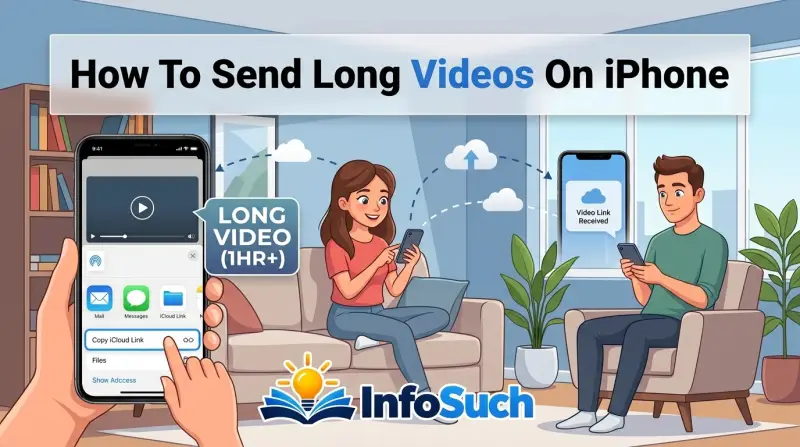
You're staring at a 4K family video from last weekend. You hit send in Messages, and the little blue bar just sits there. Then the dreaded red exclamation mark appears.
The video won't send. Sound familiar? If you've ever wondered how to send long videos on iPhone without the headache, you're in the right place.
The real problem isn't video length. It's file size. A single minute of 4K footage at 60fps can eat up roughly 400MB.
Apple's iMessage service caps attachments at around 100MB before it automatically compresses them, often destroying quality in the process. Let's walk through the actual options so you never hit that wall again.
Why Your iPhone Won't Send That Long Video (And What to Do About It)
Here's the thing most people never realize. Your iPhone isn't refusing to send the video because it's too long in terms of time. A 45-second clip can fail just as easily as a 30-minute one if the file size is too big.
The limits are all about megabytes, not minutes.
The Real Reasons Videos Fail to Send
iMessage attachment limits. Apple doesn't publish an exact number for iMessage file size caps, but the practical ceiling sits around 100MB. Exceed that, and you've got two options. The message compresses automatically, or it just fails.
Neither is great when you're sharing important footage.
The compression thing is sneaky. iMessage will often compress your video without telling you, sending a lower-resolution version to keep it under the limit. The recipient thinks they're watching your crisp 4K footage, but they're actually seeing a heavily compressed, low-quality version that looks like it was filmed on a potato.
Format compatibility issues. Modern iPhones record in HEVC, also known as H.265 codec. It's efficient, cutting file sizes roughly in half compared to the older H.264 standard. But here's the catch.
Android devices and older computers often struggle to play HEVC files. Even if your video sends successfully, the other person might not be able to watch it without converting it first.
Network limitations. Sometimes it's not the file size that's the problem. It's your connection. Sending a large video over cellular data can be painfully slow, and some carriers impose file size restrictions on MMS messages.
Over Wi-Fi, you're usually fine, but a weak signal can still cause timeouts and failures.
Storage constraints. Your iPhone needs available space to process and send any video. If your storage is nearly full, the phone might not have enough room to create a temporary copy. You'll see the "Cannot Send" error even though your video exists right there in your Photos app.
What Actually Matters: Time versus Megabytes
Let's clear up a misconception. A video's duration means almost nothing when it comes to sending it. What matters is the file size.
Here are some rough benchmarks so you know what you're working with:
| Resolution | Frame Rate | Approximate Size Per Minute |
|---|---|---|
| 1080p HD | 30 fps | 130MB |
| 1080p HD | 60 fps | 175MB |
| 4K | 30 fps | 350MB |
| 4K | 60 fps | 400MB+ |
Running these numbers, a 10-minute 4K video at 60fps could be 4GB. That's way beyond what iMessage can handle, and it's also too large for most email providers. Gmail, for example, caps attachments at 25MB.
A one-second clip of your 4K footage might be too big for email.
So the real task isn't sending long videos. It's sending large files. Once you understand that shift, the solution becomes much clearer.
Quick Answer
The fastest way to send long videos on iPhone is AirDrop for nearby recipients, and iCloud Link for remote ones. AirDrop has no file size limit and preserves original quality. For distance, use "Copy iCloud Link" in the Photos share sheet.
This creates a download link without compressing your video. These methods beat email and iMessage every time.
Pick Your Path: What to Send, Who's Receiving, and Where You Are
Before we dive into the methods, we need to make a decision. Not every method works for every situation. AirDrop is useless if your recipient is across the country. iCloud Link won't help if the other person has no internet connection.
This is the decision tree. Answer these four questions in order, and you'll land on the right method.
Step 1: Check the File Size and Format
Open your Photos app and select the video. Swipe up on the screen to see the details. You'll find the resolution, frame rate, and file size listed right there.
If your video is under 100MB, you can technically send it via iMessage. But be warned, it might still compress during transmission. If it's over 100MB, iMessage won't work at all.
Also check the format. If you see "HEVC" or "High Efficiency" next to the codec info, that's the modern format. It's great for storage but can cause playback issues on non-Apple devices.
Step 2: Is the Recipient Standing Next to You?
This is the easiest branch. If the other person is physically nearby, within about 30 feet, AirDrop is your answer. It's instant, has no file size limit, and preserves the original quality perfectly.
No waiting for uploads. No compression. Just a quick tap and the video lands on their device.
Step 3: iPhone or Android on the Receiving End?
This changes everything. AirDrop only works between Apple devices. iMessage is also exclusive to Apple. If the recipient uses Android, you've automatically eliminated two of your best options.
Cross-platform options include WhatsApp, Telegram, Google Drive, and WeTransfer. The right one depends on the file size and whether you want a direct transfer or a cloud link.
Step 4: Is Wi-Fi Available, or Are You on Cellular?
AirDrop uses a combination of Bluetooth and Wi-Fi. It doesn't need internet access, just proximity. But cloud-based methods like iCloud Link, Google Drive, and WeTransfer require a data connection.
Uploading a 2GB video over cellular data will eat your monthly allowance fast. You'll also wait much longer. If you're on a limited plan, wait for Wi-Fi before sending anything large.
The Decision Matrix
| Situation | Best Method | Why |
|---|---|---|
| Recipient nearby, iPhone to iPhone | AirDrop | Instant, no size limit, perfect quality |
| Recipient far away, iPhone to iPhone, file under 5GB | iCloud Link | No compression, easy, built into iOS |
| Recipient has Android, file under 2GB | Telegram or WhatsApp | Both support large files and preserve quality |
| Recipient has Android, file over 2GB | Google Drive or WeTransfer | Free tiers support large files, shareable link |
| Speed matters, recipient has iPhone | AirDrop | No upload time, direct transfer |
| Speed doesn't matter, file huge | Cloud storage link | Send later, recipient downloads when ready |
Method #1: AirDrop — The King of Quality and Speed
AirDrop is the unsung hero of iOS. It's been around since 2011, and it's still the single best way to move files between Apple devices. Here's why it wins for long videos.
When AirDrop Works Perfectly
AirDrop uses Bluetooth to discover nearby devices and Wi-Fi to transfer the data. That means you and your recipient need to be close, typically within 30 feet. Walls can interfere, but generally, if you can see each other, AirDrop will work.
There's no file size limit. None. We've moved multi-gigabyte video projects this way without a hiccup.
The transfer speed is also excellent. A 1GB video transfers in a matter of seconds on a decent Wi-Fi connection.
The quality stays perfect. AirDrop sends the original file. No compression, no conversion, no changes.
Your 4K footage arrives exactly as it exists on your phone.
How to Use AirDrop Step by Step
- Make sure both devices have Wi-Fi and Bluetooth turned on.
- On your iPhone, open the Photos app and select the video or videos you want to send.
- Tap the Share icon in the bottom-left corner. It looks like a square with an arrow pointing up.
- The Share Sheet appears. At the top, you'll see available AirDrop recipients. Their names or device names appear in a row of circles.
- Tap the recipient's circle. The video starts transferring immediately.
- On the receiving iPhone, they'll see a preview pop-up. They tap Accept to save it to their Photos app.
What to Do When AirDrop Doesn't Show Up
AirDrop can be finicky. If you don't see anyone in the list, try these fixes in order:
Turn AirDrop off and on. Open Control Center by swiping down from the top-right corner. Press and hold the connectivity panel. Tap AirDrop and switch it from Receiving Off to Contacts Only or Everyone.
Try again.
Check AirDrop visibility settings. If your recipient's phone is set to Receiving Off, they won't show up in your list. They need to switch it to Contacts Only or Everyone temporarily.
Disable Personal Hotspot. If either device has Personal Hotspot on, AirDrop struggles. Turn it off on both phones.
Restart Wi-Fi and Bluetooth. Toggle both off and back on. This often clears the device discovery issue.
Reboot both phones. It sounds basic, but a quick restart resolves more AirDrop issues than you'd think.
Pros and Cons of AirDrop
| Pros | Cons |
|---|---|
| No file size limit | Requires proximity |
| Original quality preserved | Apple devices only |
| Fast transfer speed | Can be finicky with discovery |
| No internet needed | Not good for sending to many people at once |
| Free and built-in | Needs both devices to have Wi-Fi and Bluetooth on |
Who Should Use AirDrop?
Anyone sending a video to someone in the same room. That covers a lot of situations. You're sitting on the couch with a partner.
You're at a friend's house sharing vacation footage. You're at a meeting sending an edit to a colleague three chairs away.
If the recipient is nearby, AirDrop is always the first choice. It's faster, better quality, and more reliable than everything else we'll cover.
Method #2: iCloud Link — The Best for Large Files at a Distance
When the recipient isn't nearby, AirDrop goes out the window. That's where the iCloud Link method shines. It's built right into the Photos app, and it handles videos up to 5GB without compression.
How "Copy iCloud Link" Works
The concept is simple. Instead of sending the video file directly, your iPhone uploads it to Apple's iCloud servers. Then it creates a download link.
You share that link via Messages, Mail, or any other messaging app. The recipient taps the link and downloads the video from iCloud.
The key advantage? Your original video stays untouched. The quality remains exactly what you recorded.
No compression, no degradation, no nonsense.
The Limits You Need to Know
As of 2026, Apple's iCloud Link supports videos up to 5GB. That covers most clips, but not everything. A 20-minute 4K video at 60fps could exceed that limit.
If you hit it, you'll need to fall back on other methods.
Your iCloud storage also matters. The upload uses space in your iCloud Photo Library. If you're on the free 5GB tier and your library is full, the link creation fails.
You might need to free up space or upgrade to a paid plan.
Link expiry is another factor. Apple's iCloud Links last for 30 days from creation. After that, the link dies and the recipient can no longer download the video.
They must save it before the expiration date, or you'll need to create a new link.
How to Send an iCloud Link Step by Step
- Open the Photos app and select the video you want to share.
- Tap the Share icon in the bottom-left corner.
- Scroll down in the Share Sheet until you see "Copy iCloud Link."
- Tap it. Your iPhone starts uploading the video to iCloud. For large files, this can take a few minutes depending on your connection speed.
- Once the upload finishes, the link is copied to your clipboard.
- Open your messaging app of choice, paste the link, and hit send.
The recipient taps the link, and a preview opens right in their browser. They hit download, and the full-quality video saves to their device.
Making the Link Work for Non-Apple Users
The best part about iCloud Link? It works for anyone. Even Android users can open the link in their browser and download the video.
No iCloud account required. No Apple ID needed. Just a modern web browser.
Apple's link viewer is clean and straightforward. The recipient sees a preview thumbnail and a download button. For non-technical family members, it's about as simple as it gets.
Pros and Cons of iCloud Link
| Pros | Cons |
|---|---|
| No compression, full quality | Requires Wi-Fi or strong cellular for upload |
| Works for Android users | 5GB per video limit |
| Built into iOS, no extra apps | Uses iCloud storage space |
| Link lasts 30 days | Upload time depends on internet speed |
| Easy for non-technical recipients | Not suitable for huge video libraries |
Who Should Use iCloud Link?
Anyone sending a large video to someone in a different location. It's the natural answer when AirDrop isn't an option. You're emailing a wedding highlight reel to a cousin in another state.
You're sending a project file to a client in a different city. You're sharing a family video with a relative who uses Android.
It's also the best choice when you want to send a video without attaching a file. The recipient gets a link instead of a massive download landing in their Messages app. That's cleaner and easier to manage.
If your video is under 5GB and you don't mind waiting for the upload, iCloud Link is the winner. It balances quality, simplicity, and cross-platform compatibility better than anything else. For more detailed specs on iCloud storage tiers and link sharing behavior, check Apple's official iCloud support documentation.