
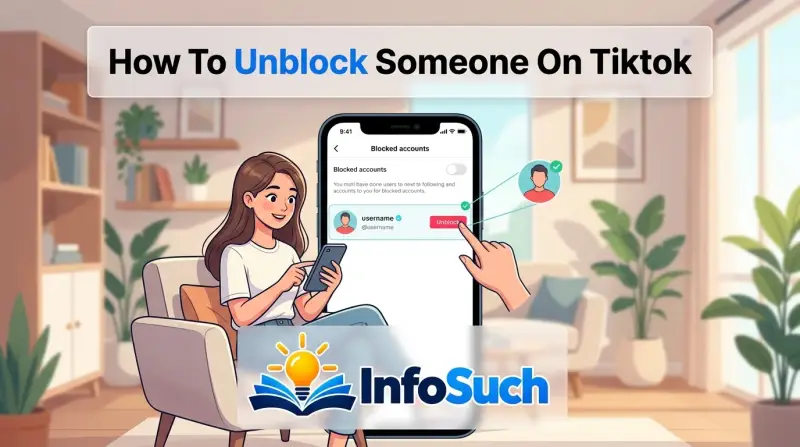
You've probably found your way here because someone you blocked on TikTok now needs to be unblocked. Knowing how to unblock someone on TikTok is actually straightforward once you understand where the setting lives. Maybe you blocked a friend by accident, or you're ready to give someone a second chance.
Either way, the whole process takes about 30 seconds.
In our research, TikTok hides the block list under Privacy, not the main Settings menu. That's the number one gotcha and the main reason people get stuck. As of 2026, the mobile app and web version follow the same basic workflow, with a few differences we'll cover.
Let's walk through it step by step.
Quick Answer: How to Unblock Someone on TikTok
Open your profile, go to Settings & Privacy, tap Privacy, then Blocked Accounts. Find the person and hit Unblock. It takes about 30 seconds.
No notification goes to them. Unblocking restores follows, messages, and content access.
The 30-Second Version
Here's the fastest path on the mobile app:
- Tap the Profile icon at the bottom-right.
- Tap the hamburger menu at the top.
- Select Settings & Privacy.
- Tap Privacy.
- Tap Blocked Accounts.
- Tap Unblock next to the person's name.
That's it. The moment you tap Unblock, the block is gone. You can immediately visit their profile, follow them again, or send a message.
Does TikTok Notify the Person You Unblocked?
No, TikTok does not send a notification when you unblock someone. This is one of the most common questions people ask, and the answer is clear. The person will only know if they check their followers, notice your profile is visible again, or you directly tell them.
The unblock action itself is completely silent.
Blocking on TikTok: What It Actually Does
Blocking on TikTok is like closing the door completely. The blocked user can't see your profile, videos, or likes. They can't send you messages, follow you, or interact with your content in any way.
They won't know for sure unless they try to find you.
How the Block Function Works
When you block someone, TikTok removes their access to your public content. This includes duets, stitches, and tags. If they had already interacted with your videos, those interactions stay but become inactive.
The block only works one way. You can still see their content if you visit their profile, but they can't see yours.
TikTok's official support documentation describes blocking as a way to prevent another user from interacting with your content or messaging you. The TikTok Help Center confirms this in plain language. Blocking is meant to be a hard boundary.
What Happens to Their Comments, Likes, and Messages
This is where people get confused. Blocking someone doesn't delete their old comments. If you scroll back through your videos, you'll still see their username and comment.
You'll also still see their likes on old videos, even after the block.
Their direct messages remain in your inbox too. You can open and read them, but you can't reply directly. They can't send new messages while the block is active.
Once you unblock, the conversation thread becomes usable again.
Block vs. Restrict: Knowing the Difference
TikTok offers two privacy tools that look similar but act differently. Restrict is the softer option. A restricted user can still follow you and see your content.
Their comments are visible only to them unless you approve each one. Blocking is the hard stop.
Here's a quick comparison to clarify:
| Feature | Block | Restrict |
|---|---|---|
| Can see your profile | No | Yes |
| Can see your videos | No | Yes |
| Can comment | No | Only visible to them |
| Can send messages | No | Yes, but goes to Requests |
| Can follow you | No | Yes |
| Can see your likes | No | Yes |
Step-by-Step: Unblocking on the TikTok Mobile App
The mobile app is where most people do this. Here's the exact path, whether you're on iPhone or Android.
The Standard iPhone and Android Path
The steps are identical on both operating systems. Tap the Profile icon in the bottom-right corner. Then tap the hamburger menu at the top of the screen, near your username.
From that menu, select Settings & Privacy. Scroll down to the Account section and tap Privacy. Then look for Blocked Accounts.
Tap it to see your full list.
Once inside, you'll see every account you've blocked, listed alphabetically. Each entry has an Unblock button on the right. Tap it, and you're done.
Finding a Specific User in Your Blocked Accounts List
If you have a long block list, scrolling through it takes time. Use the search bar at the top instead. Type their username, and the list filters as you type.
If their exact username isn't showing, double-check the spelling. A two-character difference changes the result. Also, usernames can change over time.
If you blocked them under an older handle, search for that instead.
You can also tap the user's avatar to visit their profile. That lets you confirm it's the right person before you unblock. This is especially helpful if you have multiple accounts with similar names on your list.
How to Unblock Someone on TikTok Web (Desktop)
You can manage your block list from a computer too. The web version works well, but the menu structure is slightly different from the mobile app.
The Browser-Based Workflow
Open tiktok.com and log in. Click your profile icon in the top-right corner of the screen. From the dropdown menu, select Settings.
On the left sidebar, click Privacy & Safety. Then scroll down to the Account section. You'll find Blocked Accounts there.
Click Unblock next to the username you want to remove.
That's the main path. It's a little more hidden than the mobile version because the option sits under Privacy & Safety instead of Privacy.
Differences Between Web and Mobile Unblocking
The web flow has one key difference. The blocked list on desktop loads as a separate page, not a pop-up. That means you can search and scroll faster if you have many blocked accounts.
The Unblock button is also slightly smaller on desktop. On mobile, it's a full-width tap target. On the web, it's a text button.
You won't miss it, but it takes a more precise click.
One thing stays the same across both versions. No notification is sent to the person you unblock. That privacy feature holds up regardless of platform.
What Happens After You Tap "Unblock"
Unblocking is instant. There's no review period, no pending status, no waiting. The moment you tap that button, the block is gone.
But a few things need your attention afterward.
Does the Person Get Refollowed Automatically?
No. Unblocking someone on TikTok does not automatically re-follow them. You'll need to visit their profile and hit Follow again.
Here's the tricky part. When you blocked them, they were unfollowed as part of that action. That unfollow isn't reversed by unblocking.
If you actually want to see their videos again, you have to actively follow them.
How to Send a Follow Request Again
If the account is private, you'll need to send a follow request. Tap their username and go to their profile. Then tap Follow.
A message will appear saying "Request Sent" until they approve it. If they haven't approved it yet, you won't see their content. That's normal for any private account.
There's one edge case worth knowing. If they blocked you too at some point, you won't be able to visit their profile at all. Unblocking is one-way.
It doesn't automatically remove you from their block list.
Re-Enabling Duets, Stitches, and Direct Messages
When you unblock someone, all interaction features come back immediately. They can duet your videos again. They can stitch your content.
You can tag each other, and your private message thread becomes active once more.
If you previously had a conversation with that person, it reappears. Old messages remain intact, even if they were sent before the block happened. The history doesn't disappear.
One more thing to keep in mind. If the unblocked user still can't see your profile, they may have blocked you too. That requires them to unblock you on their end.
There's no way for you to force that.
The "Soft Block" Method: A Subtle Alternative
There's a workaround floating around TikTok that people call the soft block. It's not an official TikTok feature. It's a clever use of the block and unblock mechanics to quietly remove a follower.
Here's how it works. You block someone for a second, then immediately unblock them. The block automatically removes them from your follower list.
When you unblock, they don't get automatically re-added. The net result is they're no longer following you, but you don't have to deal with the awkwardness of directly removing them.
What a Soft Block Is and Why People Use It
People use the soft block for one reason: to make someone unfollow you without them knowing, or at least without a notification. When you remove a follower normally, TikTok doesn't notify them either, but the soft block removes any doubt.
There's also a social aspect. Directly removing someone as a follower sometimes feels hostile. Blocking then unblocking is a cleaner break.
The person just notices one day that they're no longer following you. They may not even realize it happened.
The soft block also forces a refresh in TikTok's algorithm. Some content creators use it to shake off a follower who was never engaging. If someone follows you but never watches or likes anything, they're dragging down your engagement rate.
Removing them helps your content reach more of the people who actually watch.
Soft Block vs. Permanent Unblock
The difference matters. A soft block is a temporary action with a specific goal. A permanent unblock means restoring the relationship to normal.
Let's lay it out in a table so the distinction stays clear:
| Aspect | Soft Block | Permanent Unblock |
|---|---|---|
| Duration | Seconds or minutes | Indefinite |
| Goal | Remove a follower quietly | Restore full access |
| Relationship after | The person is no longer following you | They can follow you again |
| You follow them | Yes, if you already did | Yes, if you choose to |
| Notification sent | None | None |
Here's the decision logic. If you want someone gone from your follower list but you don't want the confrontation, use the soft block. If you want to fully restore a connection with someone, just unblock them and let everything reset naturally.
One important note. A soft block won't work if the person's profile is private and they don't follow you back. Blocking only removes them from your followers if they were actually following you in the first place.
Real Scenarios: When Unblocking Makes Sense
Everyone's situation is different. But there are a few common patterns that show up again and again in TikTok's help forums and user discussions.
Accidentally Blocked a Friend or Family Member
It happens more often than you think. You're scrolling through your follower list or your "who watched your videos" section, and you tap the wrong button. The block menu pops up with just one tap to confirm.
Before you know it, your sister can't see your videos anymore.
If this happened to you, don't panic. Walk through the steps we covered earlier. Find them in your blocked accounts list, tap unblock, and send them a quick follow request if needed.
They likely won't have noticed unless they tried to find your profile. If they did notice, the block usually just looks like a momentary glitch once you unblock them.
The bigger question is whether they know. Since TikTok doesn't send notifications for unblocking, they'll only know you blocked them if they tried to visit your profile during that window. Even then, they might assume it was a technical issue.
That's the beauty of the silent unblock.
Creators Collaborating Again After a Fallout
Creators block each other all the time. Maybe you had a disagreement over content. Maybe someone said something in a comment section that rubbed you wrong.
You block them, move on, and that's that.
Then the time comes when you need to do a duet or a stitch together. Maybe you both landed spots at the same brand event. Maybe your audiences have been asking you to collab.
Whatever the reason, professional collaboration requires access.
The path is the same. Go to your blocked list, find them, and tap unblock. Once you do, you can tag each other, duet, and stitch freely.
The hesitation you feel is emotional. The process itself takes seconds.
Cleaning Up an Old Block List
Here's a scenario people don't think about enough. You blocked a bunch of accounts months or years ago, and your blocked list is now a graveyard of usernames you barely remember. Some of those accounts have been deleted.
Others have changed usernames so much you don't recognize them anymore.
When you clean up your block list, you free up space in TikTok's privacy system. You also reduce the chance of accidentally blocking someone you actually like now. People change, and so do their online personas.
That spam bot you blocked in 2024 might genuinely have grown into a legitimate creator by now.
Use the search bar in your blocked accounts list to review entries quickly. Tap through a few profiles. If an account looks inactive or deleted, TikTok shows a note saying "User may have been banned or deactivated." That account doesn't need to stay on your list.
Unblock it and clear the clutter.
Mistakes to Avoid When Unblocking
The process is simple, but people still get it wrong. Most of the common mistakes come down to confusion about what unblocking actually does.
Unblocking the Wrong Account
This one is more common than you'd think. Let's say you have three different accounts on your block list with the username "shadow_wolf" and different numbers at the end. They're not the same person.
They're just three different accounts with similar names.
If you're not paying attention, you might unblock the wrong one. Then you've dropped your block on a complete stranger while the person you actually wanted to unblock is still blocked. Always tap the avatar and confirm the profile before hitting that unblock button.
A good habit is to search for the exact username rather than scrolling the list. The search function filters everything. It helps you see exactly which account number you're about to unblock.
Expecting a Notification to Be Sent
If you're unblocking someone to get their attention, that's the wrong approach. TikTok won't tell them. No push notification.
No in-app alert. Nothing.
If you want them to know you've unblocked them, you need to send a direct message or follow them. Otherwise, they may never realize. Some users wait weeks before visiting your profile again.
It's entirely possible for an unblocking to go unnoticed for months.
Forgetting About the Private Account Follow Request
Here's the trap people fall into. They unblock someone with a private account, then expect everything to work instantly. It doesn't.
The person still has to approve your follow request before they can see your content.
This catches people off guard. They unblock, hit follow, and then wonder why nothing is happening. The answer is simple.
Private accounts require approval. If the person doesn't check their follow requests often, you might wait a while.
Assuming Unblocking Rebuilds the Relationship
The block is gone, but the history stays. They can see your profile again, but they'll also remember that you blocked them. Unblocking doesn't erase what happened.
It hands both sides the option to start fresh.
If the other person is hurt, don't be surprised if they don't follow you back immediately. Give them space. The unblock is the first step, not the whole journey.
Common Problems and Quick Fixes
Sometimes the process doesn't go smoothly. You find your blocked list, tap the button, and nothing useful happens. Here are the problems people run into most often and how to fix them.
The Unblock Button Isn't Responding
The most reported issue is the unblock button doing nothing when tapped. This is almost always an app glitch, not a problem with your account. The fix is simple.
Force-close the app and reopen it.
On iPhone, swipe up from the bottom and hold to see your app switcher. Swipe TikTok away. Then tap the app again to relaunch.
On Android, open the recent apps view, swipe TikTok away, and reopen it.
If force-closing doesn't work, clear your cache. Navigate to Settings & Privacy, then Clear Cache. That usually resolves the freeze.
As a last resort, delete the app and reinstall it. Your data is tied to your account, so you won't lose anything.
The User Isn't Showing Up in Your Blocked List
You know you blocked someone, but their name is nowhere in your list. There are a few possible reasons.
First, the account may have been deleted. When a user deletes their account, they disappear from your block list automatically. There's no notification, they're just gone.
Second, they may have changed their username. The list shows current usernames, so if you're searching for an old handle, you won't find them. Browse the full alphabetical list instead of searching.
Third, you might not have actually blocked them. You may have restricted them instead. Check your restricted list as well.
Restricted accounts live in a separate part of your privacy settings.
Regional or App Version Variations
TikTok rolls out updates gradually. Some users see a newer version of the privacy menu while others have the classic layout. The differences are usually small, but they can confuse people following along with an outdated tutorial.
In our research, the settings path has been fairly stable since 2023. Profile, hamburger menu, Settings & Privacy, Privacy, Blocked Accounts. Some international versions label the section "Block list" instead of "Blocked Accounts." If the wording differs, look for the section header under Privacy that starts with the word "Block."
If you absolutely can't find it, search TikTok's in-app support. Tap Profile, go to Settings & Privacy, and select Report a Problem. Search for "block list" and the app will show you the current location in your specific app version.
Frequently Asked Questions
How Many Times Can You Block and Unblock Someone?
There's no limit. You can block and unblock the same person as many times as you want. TikTok doesn't restrict this process in any way.
Each unblock resets their access completely. Each new block re-applies the restrictions. The cycle is unlimited.
Does Unblocking Delete Their Comments on Your Videos?
No. Comments and likes from the blocked period remain on your videos after you unblock. Blocking never removes past activity.
It only prevents future interaction. If you want their old comments gone, you have to delete them manually by tapping and holding each comment.
Can the Person Tell You Unblocked Them?
They can't see a notification, but they can figure it out. If they visit your profile during the blocked period, they see an error or an empty profile. After you unblock, they can view everything again.
They also regain the ability to message you. If they try either of those things, they'll know the block is gone.
What Happens to Direct Messages After Unblocking?
Your conversation thread returns to normal. Old messages stay intact, and they become readable again. They can send you new messages immediately, but those messages sit in your main inbox.
They don't get sent to message requests because you've had an active conversation with them before.
Does Unblocking Automatically Refollow the Person?
No. Unblocking only removes the block. It does not restore a follow relationship.
You have to visit their profile and follow them again. If their account is private, they need to approve your follow request before you can see their content.
Why Does TikTok Still Show Them as Blocked After I Unblocked?
This is almost always a caching issue. The app is showing you stale data. Force-close the app and reopen it.
If that doesn't help, clear your cache in Settings & Privacy. The list will update on your next refresh. If it still persists, log out and log back in to force a full sync.
Final Decision Guide: Should You Unblock Them?
Quick Checklist Before You Hit Unblock
Before you tap that button, ask yourself why you're doing it. If someone is stalking you or making you uncomfortable, the answer is simple. Keep the block.
If it's a friendship that hit a rough patch, unblocking can be a healthy reset.
Here's the checklist to run through:
- Is the block still protecting you from harm?
- Do you actually want to see this person's content again?
- Have they reached out elsewhere to apologize or make things right?
- Are you unblocking for them, or for you?
- Can you accept the possibility that they won't follow you back?
If you hesitated on any of those, wait another 24 hours. The block stays, and that's fine. When you're ready, the unblock button is one tap away.
When Keeping Someone Blocked Is the Better Call
Sometimes the block exists for good reason. If the account was posting harassment, hate speech, or triggering content, unblocking just reopens the door. TikTok's safety rules let you block for any reason.
You don't need to justify it to anyone.
The decision tree is straightforward:
- If they've sent threats or made you feel unsafe, keep the block.
- If they've created new accounts to get around the block, keep it and report each one.
- If they've made no attempt to make amends, there's no urgency.
| Unblock when… | Keep blocked when… |
|---|---|
| You accidentally blocked them | They've harassed you |
| They apologized and you're ready | They show no accountability |
| You need to collaborate professionally | They've publicly mocked the block |
| You miss their content | You still feel tense or anxious |
Our research suggests that most people know the right answer within 30 seconds. If your gut says no, trust it. If it says yes, unblock and move forward.
The beauty of TikTok is that block and unblock are both reversible. Either way, you're in control.