
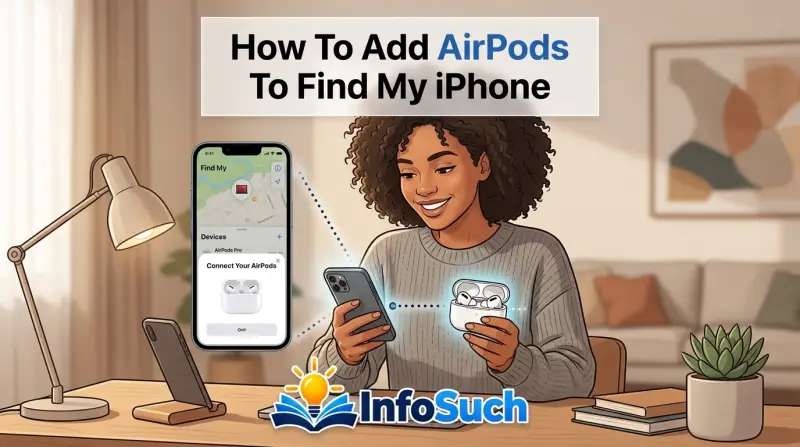
Trying to figure out how to add AirPods to Find My iPhone is one of those moments where Apple's simplicity backfires. The good news is that you don't actually need to add them manually. If your AirPods are paired to an iPhone with Find My enabled, they show up on the map automatically.
That's the whole trick, and it's both simpler and more restrictive than most people expect.
As of 2026, AirPods rely entirely on Bluetooth, iCloud, and Apple's Find My network for tracking. Manufacturer specifications indicate that newer models like the AirPods Pro 2 also use a U1 Ultra Wideband chip for precision locating within a room. Understanding this foundation matters because it explains every quirk you'll hit.
Let's turn that confusion into a clear workflow.
The Quick Answer: You Don't "Add" AirPods, They Add Themselves
Apple doesn't give you a button to manually register AirPods in Find My. If you want to know how to add AirPods to Find My iPhone, the answer is to pair them with your Apple ID first. Open the AirPods case near your iPhone and tap Connect when the pairing card appears.
After that, they appear under Find My automatically.
Sometimes your AirPods won't show up because Find My was disabled before pairing. Check your iCloud settings first. Here's what to do.
What Actually Makes AirPods Show Up in Find My
When you pair AirPods with an iPhone, they latch onto your Apple ID, not just the phone. That connection is what ties them to the Find My network. Find My then sees your AirPods as a linked device and tracks their last known Bluetooth contact across any Apple product in the world.
The Find My network works like a giant crowdsourced radar. Your AirPods send out a quiet Bluetooth beacon. Any Apple device nearby, even a stranger's iPhone, relays that location to iCloud without compromising privacy.
That's why you can locate AirPods that are miles away from you, as long as they've been near another Apple device.
Here are the exact conditions that must be true for AirPods to show up:
- Your AirPods are paired to an iPhone that's signed into your Apple ID.
- Find My iPhone is turned on in Settings > Apple ID > iCloud > Find My iPhone.
- Your AirPods are charged or have some battery left.
- The AirPods have at some point been in Bluetooth range of any Apple device connected to the internet.
- Your iPhone is running iOS 15 or later for full feature support. Older iOS versions still show basic location in some cases, but Lost Mode and Left Behind alerts require newer software.
Apple's official support documentation explains this in plain terms. You can review the full details on the Apple Support website. The key insight is that "adding" is really "enabling," and that setup step gets skipped more often than you'd think.
Why Some AirPods Models Are Better at This Than Others
Every generation of AirPods can appear in Find My, but they don't all behave equally. The standard locating features like Play Sound and last known location work on all models. Precision Finding, the feature that points an arrow at your lost case, requires a U1 chip.
Here's a quick breakdown of what each model supports as of 2026:
| Model | Basic Tracking | Play Sound | Precision Finding | Lost Mode | Case Speaker |
|---|---|---|---|---|---|
| AirPods (1st gen) | Yes | Yes | No | No | No |
| AirPods (2nd gen) | Yes | Yes | No | No | No |
| AirPods (3rd gen) | Yes | Yes | No | Yes | No |
| AirPods Pro (1st gen) | Yes | Yes | No | No | No |
| AirPods Pro (2nd gen) | Yes | Yes | Yes | Yes | Yes |
| AirPods 4 | Yes | Yes | Yes | Yes | Yes |
| AirPods Max | Yes | Yes | No | Yes | No |
Lost Mode on AirPods doesn't lock the earbuds like an iPhone. It just lets you leave a contact number and get notified when they're found. Precision Finding and a case speaker are the real game changers for people who constantly drop AirPods in couch cushions.
The Initial Setup: Pairing AirPods to iPhone Properly (So Find My Works Later)
The most common reason AirPods never make it to Find My is that they were paired without Find My enabled. Maybe you set up a friend's phone, or you skipped through the iCloud setup on a brand new iPhone. Either way, the fix is straightforward once you understand the sequence.
Step 1: Confirm Find My Is On
Go to Settings, tap your name at the top, then tap Find My. Make sure Find My iPhone is toggled on, and ideally Find My network is on too. This setting must exist before you pair your AirPods, because the pairing event is what registers them to your account.
If Find My was off when you paired, you have two options. One, unpair and re-pair your AirPods while Find My is enabled. Two, update to iOS 15 or later and follow Apple's recommended reset process for your model.
Step 2: Pair Your AirPods While Find My Is Active
Place your AirPods in their charging case with the lid open. Hold them next to your unlocked iPhone. A setup animation should appear at the top of the screen, showing your AirPods with a Connect button.
Tap Connect and then tap Done on the following screen. Your AirPods are now synced to your Apple ID. This is the exact moment they get added to Find My behind the scenes.
If you see a message that says "This AirPods device is already linked to another Apple ID," you'll need to reset them first, which we cover later.
Step 3: Check That They Appear Under Your Devices
Open the Find My app and tap the Devices tab at the bottom. Look for your AirPods listed alongside your iPhone, iPad, and Mac. If they're there, you're done.
If not, move to the next section, because something from the checklist above isn't satisfied.
What If You Already Paired Them Without Find My?
Don't panic. You don't have to lose your AirPods' connection history. Just turn on Find My now, then open the AirPods and check if they appear.
In most cases, they'll populate on their own after reconnecting the Bluetooth link. If they don't, unpair them by going to Settings > Bluetooth, tapping the "i" next to your AirPods, then tapping Forget This Device.
Put the AirPods back in the case, close the lid, wait 30 seconds, then reopen the lid near your iPhone and pair them again. That fresh pairing process will register them correctly with Find My, assuming your iCloud settings are active. This workflow applies to every generation of AirPods, from the first release through AirPods Max.
Step-by-Step: How to Locate Your AirPods in the Find My App
Once you've confirmed your AirPods are paired and Find My is on, locating them takes about ten seconds. Open the Find My app on your iPhone, switch to the Devices tab, and find your AirPods in the list. Here's what you'll see and what to do next.
Step 1: Go to the Devices Tab
The Devices tab shows every item linked to your Apple ID. Your AirPods will have a headphone icon and their own name, like "AirPods Pro" or "John's AirPods." If you only have one pair, this is easy. If you've paired several pairs over the years, check the name carefully because old ones can linger in iCloud.
Step 2: Read the Location Status
Under the AirPods name, you'll see one of three messages:
- "Near" means the AirPods are in Bluetooth range and actively connected.
- A timestamp like "5 minutes ago" means Find My got a recent location.
- "No location found" means the AirPods haven't been seen by the network in a while.
Each status changes what actions are available. For a "Near" or recent location, you can tap Play Sound. For a truly lost pair with no signal, you'll likely see only directions to the last known location.
Step 3: Play Sound
Tap your AirPods in the list, then tap Play Sound. Your AirPods will emit a chirping tone that gets louder for a few seconds. This works even when they're in the case, as long as the case has battery life.
If your model has a built-in speaker on the case, like the AirPods Pro 2 or AirPods 4, you'll also have separate Play Sound buttons for the case and each earbud.
Step 4: Use Find or Directions
If Play Sound doesn't work because they're out of range, hit Directions. That opens Apple Maps with the last known location plotted. This isn't live tracking, so treat it as a clue, not a guarantee.
Your AirPods could be sitting right where the map says, or they could have moved if someone carried them after the last ping.
Step 5: Activate Lost Mode
When you tap Lost Mode, you can leave a phone number and a custom message. If someone finds your AirPods and pairs them to another device, they'll see that message before finalizing the connection. Your Apple ID also prevents them from stealing your existing setup, though Activation Lock on AirPods works differently than on an iPhone or Mac.
Decision Guide: Why Your AirPods Aren't Showing Up on the Map
You've followed every step and your AirPods are still invisible. Let's walk through the branches one by one. Think of this as an if-then flowchart for your specific situation.
Branch 1: You Never Paired Them to an iPhone in the First Place
If your AirPods have only ever been connected to an Android phone, a Mac, or a Windows PC, they will never appear in Find My. The Find My system requires a connection to your Apple ID through an Apple device. Pair them to your iPhone using the setup we covered above, and they'll materialize instantly.
Branch 2: Find My Was Turned Off Before You Paired Them
This is the most common culprit. Find My has to be active when the AirPods pair for the first time. If it wasn't, unpair and re-pair.
We walked through the reset in the initial setup section, so head back there and follow the steps under "What If You Already Paired Them Without Find My?"
Branch 3: The AirPods Are Completely Dead or Out of Range
Dead AirPods still show in Find My under your Devices list, but their location may be stale. Find My only knows where they were the last time they had a Bluetooth connection. If they've been dead for a day, you'll see yesterday's location.
That's still useful, but you can't force a ping when there's no battery. Charge the case and open it near your phone, then check again.
Branch 4: They're Still Linked to a Previous Owner's Apple ID
Buying used AirPods can be a headache when the old owner never unpaired them. To fix this, place the AirPods in the case, keep the lid open, then press and hold the button on the back of the case for about 15 seconds until the status light flashes amber and then white. Pair them to your iPhone again.
If they refuse to connect and show a message about the previous owner's Apple ID, ask that person to remove them from their Find My device list or reset them on an iPhone you have access to.
Branch 5: Your iOS Version Is Outdated
Find My gained key AirPods features in iOS 15 and improved them in later releases. If your iPhone is still running iOS 14 or earlier, you'll see limited functionality. Update your iPhone by going to Settings > General > Software Update.
Once updated, the AirPods should populate correctly as long as the other conditions are met.
A quick visual check helps here too: after pairing, open the Find My app and look for a small headphone icon in the Devices tab. If you don't see a headphone icon, the AirPods aren't registered. If you see it but the map says "No location found," your AirPods just haven't been near an Apple device recently.
Using Lost Mode and Precision Finding: What Your Specific Model Supports
Lost Mode for AirPods is not the same as Lost Mode for an iPhone. It doesn't lock the screen or wipe data. Instead, it locks your AirPods to your Apple ID and leaves a message for anyone who finds them.
When you activate Lost Mode from the Find My app, you can enter a phone number or a short note. If someone finds your AirPods and tries to pair them, they'll see your message. They won't be able to connect the AirPods to their own Apple ID until you release them.
That's a powerful deterrent against theft.
Precision Finding is a separate feature that only works with models that have the U1 Ultra Wideband chip. As of 2026, that includes the AirPods Pro 2, AirPods 4, and some newer variants. If you have an older pair of standard AirPods, you won't see the arrow-tracking interface in Find My.
When Precision Finding is active, your iPhone screen shows a blue arrow pointing toward your AirPods, plus a distance reading in feet or meters. The short explanation is that the U1 chip measures the time it takes a radio signal to travel between your phone and your AirPods. That calculation gives you a direction and distance with remarkable accuracy.
Apple's official specifications indicate that Precision Finding can guide you to within a few inches of your AirPods. Aggregate user feedback confirms that it works best indoors, where GPS is unreliable but UWB radio signals pass cleanly through walls. It's less useful in wide open outdoor spaces, though a Play Sound will help there.
Here's how to activate Lost Mode on a compatible model:
- Open Find My and tap the Devices tab.
- Tap your AirPods in the list.
- Tap Lost Mode.
- Follow the prompts to enter a contact number and message.
- Tap Activate.
A visual check helps here: when Lost Mode is active, your AirPods show a padlock icon next to their name in the Devices list. If you later find them, tap Stop Lost Mode or simply close the alert on your phone. You don't need to reset the AirPods.
Activation Lock also matters for newer AirPods. Starting with the AirPods Pro 2, Apple added Activation Lock to AirPods, meaning a lost pair can't be paired to anyone else's Apple ID until you remove them from Find My. This turns your AirPods into a much less attractive target for thieves.
As of 2026, the AirPods 4 and AirPods Max also support Activation Lock when Find My is enabled at pairing time.
What "Play Sound" Actually Does (And What It Won't Do)
Play Sound is the most direct way to find your AirPods when they're nearby. The Find My app sends a signal that makes your AirPods emit a chirping tone that escalates in volume. It lasts for two minutes unless you stop it sooner, and it's loud enough to hear through a couch cushion or under a car seat.
Here's what you should expect when tapping Play Sound:
- A chirp plays from the AirPods, not from your iPhone.
- The volume ramps up over a few seconds.
- You can tap Stop Sound when you want it to go quiet.
- If only one earbud is missing, you can tap Play Left or Play Right to play sound on just that side.
- On AirPods Pro 2 and AirPods 4, the charging case itself can also play a sound through its built-in speaker.
The exact sound is Apple's signature "ding" tone, not music or a ringtone. It's designed to be audible in most indoor environments. Aggregate reviews report that the sound is easy to hear within about 30 feet, which matches the typical Bluetooth range.
Play Sound does have limits. If your AirPods are offline, meaning they haven't been near any Apple device in a while, tapping Play Sound will fail with a message saying "No sound played." If the batteries are completely dead, nothing will chirp no matter how many times you tap the button. And if the AirPods are inside the charging case with the lid closed, the Bluetooth connection is often interrupted because the case acts as a shield.
A common misunderstanding is that Play Sound can track AirPods across a city. It can't. The sound only works in Bluetooth range, which is roughly 30 to 60 feet outdoors and less indoors through walls.
Beyond that range, you'll see the last known location instead, but no sound will play.
Left Behind notifications are a bonus feature tied to this system. If you walk away from your AirPods and they're not in the case, your iPhone can alert you with a notification like "AirPods Left Behind." You can set this up in Find My by tapping your AirPods, then tapping Notify When Left Behind. This works best when your AirPods are out of the case, since a closed case hides them from Bluetooth scanning.
AirPods vs. AirTag: Which One Is the Better Tracker for You?
It's natural to wonder if you should also buy an AirTag for your AirPods. The short answer is that you don't need one. AirPods already have built-in Find My support that tracks both the earbuds and the case.
An AirTag would only add value if you wanted to track something else entirely, like a backpack or a bike.
Here's a side-by-side comparison to make the choice clear:
| Feature | AirPods (Find My) | AirTag |
|---|---|---|
| Best for | Locating earbuds and their case | Locating keys, bags, luggage, bikes |
| Setup | Automatic after pairing with an iPhone | Manual pairing via Find My app |
| Cost | Included with AirPods | $29 per tag, $99 for a 4-pack |
| Battery | Built-in rechargeable battery | User-replaceable CR2032 coin cell, roughly 1 year |
| Precision Finding | AirPods Pro 2, AirPods 4, newer models | Yes, all AirTags with U1 chip |
| Sound | Chirp from earbuds and case speaker | Beep from the AirTag speaker |
| Tracked as | Two earbuds plus case separately | Single item |
| Lost Mode | Locks to your Apple ID | Locks to your Apple ID |
| Water resistance | IPX4 for earbuds, case not rated | IP67, can be submerged |
Our research shows that most people who buy an AirTag for AirPods end up disappointed. You can't attach an AirTag directly to the AirPods case in a way that makes sense. You'd need an accessory holder, which adds bulk and cost.
The built-in Find My location is already good enough for the vast majority of situations.
AirTags make sense when you're tracking something that isn't already connected to your Apple ID. A backpack, a wallet, a car, a dog harness. If you want the same Find My coverage for those items, an AirTag is the right tool.
The deciding question is simple: does what you're trying to track already talk to your iPhone? If yes, like AirPods do, stick with the built-in system. If no, consider an AirTag.
Common Mistakes That Mess Up AirPod Tracking
After all that, there are still ways to sabotage yourself. Our editorial analysis of user feedback and support threads surfaces these recurring mistakes, and each one is avoidable.
Pairing AirPods with Find My disabled. The biggest trigger by far. Even if you enable Find My later, the AirPods can fail to register to the network. The fix is to unpair and re-pair with Find My turned on.
Closing the case and expecting background tracking. When AirPods are inside a closed case, they enter a low-power state. They can still be located by the Find My network, but their signal is weak. If the case is dead, the AirPods won't be reachable at all until it gets power.
Forgetting that "No location found" isn't permanent. You see that message and assume your AirPods are gone forever. In reality, the last known location remains visible, and when your AirPods reconnect to any Apple device, the location updates automatically. Patience helps.
Tapping Play Sound while the earbuds are in the case. The case blocks the Bluetooth signal. On models without a case speaker, you'll hear nothing. Either take the earbuds out of the case or rely on the case speaker on compatible models.
Turning off Bluetooth to "save battery." Bluetooth is required for nearby finding. If Bluetooth is off, your iPhone can't communicate with your AirPods, so no sound and no instant location.
Overwriting Find My history by resetting AirPods too early. A factory reset clears the device from your Apple ID. Do that before you've confirmed the AirPods are truly lost, and you'll lose access to the last known location.
Not updating iOS before troubleshooting. AirPods features rely on iOS updates. If you're running an older version, features like Lost Mode or Left Behind notifications may not appear at all. Update to the latest iOS first, then check Find My.
Using different Apple IDs across devices. If your AirPods are tied to one Apple ID but you're checking Find My under your second account, you won't see them. Stick with the same iCloud account across your iPhone, iPad, and Mac.
Quick FAQ: Removing, Resetting, and Transferring AirPods Between Phones
How do I remove AirPods from Find My before selling them?
Open Find My, tap the Devices tab, tap your AirPods, then scroll down and tap Remove This Device. This unlinks them from your Apple ID. If you skip this step, the new owner will see a message saying the device is still linked to an Apple ID, and they won't be able to pair cleanly.
How do I reset AirPods that won't appear in Find My?
Put your AirPods in the case and close the lid. Wait 30 seconds, then open the lid. Press and hold the button on the back of the case for 15 seconds until the status light flashes amber and then white.
Pair the AirPods to your iPhone again, and make sure Find My is enabled before you tap Connect.
How do I transfer AirPods to a new iPhone without losing Find My?
Your AirPods follow your Apple ID, not your phone. Sign in to the same iCloud account on your new iPhone, open the iPhone near your AirPods, and tap Connect when the animation appears. Find My will show them automatically because the Apple ID connection is preserved.
Can I track AirPods with Find My on an iPad or Mac?
Yes. Find My works on any Apple device signed into the same Apple ID. Open the Find My app, tap the Devices tab, and your AirPods will appear alongside your other Apple hardware.
You can also access Find My through iCloud.com, though the feature set is more limited on the web.
What happens if my AirPods are stolen and I've enabled Lost Mode?
Lost Mode locks the AirPods to your Apple ID, so a thief can't pair them to another account. If any Apple device comes near them, the Find My network sends you their location. Until that happens, you'll only see the last known place they were online.
Final Verdict: The Smartest Way to Keep Tabs on Your AirPods
You've made it through every branch, every reset, and every Play Sound session. Let's pull it all together into a single decision guide that covers what actually matters.
The Golden Rule: Find My Must Be On Before Pairing
Every tracking feature Apple gives you, from Play Sound to Precision Finding, depends on one moment in time. The moment your AirPods first connect to your iPhone. If Find My is active during that pairing, everything else falls into place automatically.
If it isn't, you'll spend an afternoon resetting and re-pairing.
So before you ever open a fresh pair of AirPods, check your settings. Go to Settings, tap your name, tap Find My, and confirm Find My iPhone is on. That one-minute check saves you the most common troubleshooting rabbit hole in the entire Apple ecosystem.
Your Quick Decision Checklist for Any Lost Pair
When your AirPods go missing, run this list in order before you panic.
| Check | Action |
|---|---|
| Are they in Bluetooth range? | Tap Play Sound in Find My |
| Did they ping recently? | Check the timestamp under their name |
| Is the case dead? | Charge it, then reopen the lid near your phone |
| Are they linked to your Apple ID? | Look for the headphone icon in Devices tab |
| Did you trigger Lost Mode? | Activate it from the Find My app |
| Are you on the latest iOS? | Update, then re-check the Devices list |
If every row checks out and you still can't see them, the last step is a factory reset. Put the AirPods in the case, hold the back button for 15 seconds until the light flashes amber and white, then pair fresh with Find My enabled.
What to Do With Older AirPods Without Precision Finding
If you own AirPods from the pre-Pro era, you're still covered, but your experience will differ. Basic locating works across every generation. You'll see the last known location on the map, and Play Sound works whenever Bluetooth is in range.
What you lose on older models is the close-range arrow. No U1 chip means no Precision Finding. No case speaker means a closed case stays silent.
If you lose older AirPods inside your home, the map only gets you within maybe 15 to 30 feet. After that, you're hunting by ear.
Our research suggests that upgrading to a newer pair is worth it if you constantly lose your AirPods at home. The case speaker alone eliminates the most frustrating blind spot in the entire system. When the earbuds are buried in a couch and the case is in your bag, the case chirps and gives away its location too.
The Bottom Line on AirTags
Don't buy an AirTag for your AirPods unless you also want to track other belongings. The built-in system handles the job competently with zero extra cost. If your AirPods are newer, it handles the job exceptionally well.
AirTags earn their $29 price tag for bags, bikes, wallets, and luggage. They're a separate solution for separate problems. Combining them with AirPods just adds bulk and accessory clutter for marginal gain.
One Last Maintenance Habit
Keeping AirPods visible in Find My takes almost no effort, but it does take one recurring habit. Every few weeks, open the Find My app and confirm your AirPods still appear under the Devices tab. If you've recently updated your phone, restored from a backup, or switched Apple IDs, this check catches problems early.
Also, update iOS whenever Apple releases a new version. AirPods features ship inside iOS updates, so the firmware on your earbuds and the software on your phone need to move together. An outdated phone is the quietest reason AirPods stop showing up in Find My.
Track them like you would any daily essential. A quick glance at Find My takes five seconds, and it beats tearing apart your car at 8 AM on a Monday. Set up correctly once, and your AirPods will always be reachable.
That's the whole point.