
If your iPhone keeps buzzing with calls that show up as "No Caller ID," you already know how frustrating it gets. You can't see who's on the other end, you can't block them the traditional way, and yet they keep ringing through. The good news is you actually have more control over this than you think.
If you've been searching for how to block no caller id on iphone, the solution is built right into iOS, and it takes less than a minute to set up.
In our research, Apple introduced the "Silence Unknown Callers" feature back in iOS 13, and it has remained the primary method for handling masked and unknown numbers ever since. As of 2026, the function works the same way across iOS 13 through iOS 18, though the naming changes slightly depending on your region. We'll walk you through exactly what this toggle does, what it doesn't do, and which method actually fits your specific situation.
The Problem: Why "No Caller ID" Calls Are So Annoying
Let's be honest. A call that shows "No Caller ID" feels different from a random spam call with a real number attached. At least with a visible number, you can block it after the fact.
With a masked number, there's nothing to tap, no digits to copy, no "Block this Caller" button in your Recents list. The call comes in, you stare at it, and it disappears like a ghost.
There are actually three distinct labels you might see on your iPhone, and understanding the difference matters more than you'd think:
| Label Shown | What It Means | Can You Block It Directly? |
|---|---|---|
| No Caller ID | The caller deliberately hid their number using *67 or carrier-level masking | No, there's no number attached to block |
| Unknown | The network couldn't identify the caller, or they're calling via VoIP/spoofed service | No, same issue as above |
| A Normal Phone Number | The caller ID passed through, but it's likely a robocall or spammer | Yes, tap the "i" icon and hit "Block this Caller" |
The core issue is that iOS treats all masked calls as "Unknown." That means you can't selectively block just "No Caller ID" numbers while still letting other unknown numbers through. It's an all-or-nothing situation, and that's exactly why people get confused when they search for a quick fix.
If you're getting calls from a number that appears in your Recents list with an actual phone number attached, to block it the traditional way works fine. But if the call shows "No Caller ID" or "Unknown," you're dealing with the system-wide toggle instead. Knowing which scenario you're facing determines the entire workflow.
Quick Answer: The 30-Second Fix That Works for Most People
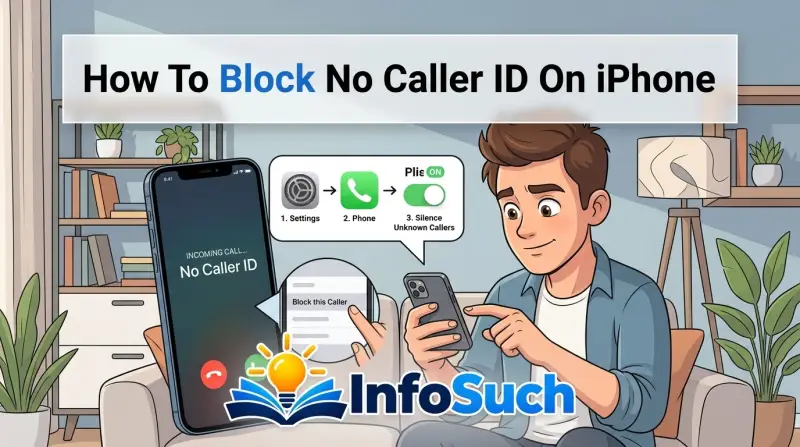
Open Settings. Tap Phone. Toggle on "Silence Unknown Callers."
That's the short version, and for the majority of people, it solves the problem completely. When this setting is on, any call from a number not in your Contacts, not in your Recents, and not in your Favorites goes straight to voicemail. Your phone won't ring, vibrate, or light up for those calls.
You'll see a missed call notification afterward, and the voicemail will be waiting if they left one.
There are two important caveats. First, this also silences legitimate calls from numbers you haven't saved, like your doctor's office, a delivery driver, or a new client. Second, if someone calls you repeatedly from the same unknown number, iOS will eventually let it ring through after a few attempts because the system assumes it might be important.
Neither of these surprises is a dealbreaker, but you should know they exist before you flip the switch.
If you're in the UK, look for the same setting under the name "Call Silence" instead of "Silence Unknown Callers." Same feature, different label. Apple made the naming change in iOS 17, and it catches a lot of people off guard.
How iOS Handles "No Caller ID" vs. "Unknown" vs. "Private Number"
Here's where things get a little technical, but stick with us because this actually matters for how you approach blocking. When a call comes in without an identified number, iOS categorizes it based on the information it receives from the carrier network.
A "No Caller ID" or "Private Number" label typically means the caller deliberately used a masking service or dialed *67 before calling. This is common with telemarketers who don't want you to know their real number, but it's also used by legitimate people who just value their privacy, like therapists, journalists, or lawyers.
The "Unknown" label is slightly different. This usually appears when the call is coming through a VoIP service, a spoofed number, or a carrier that doesn't properly transmit caller ID information. The network simply doesn't have the data to show you a number, so iOS defaults to "Unknown."
Both of these scenarios funnel into the same iOS behavior. Apple's "Silence Unknown Callers" feature doesn't differentiate between them. It just looks at whether the incoming number matches anything in your Contacts, your Recents list, or your outgoing call history.
If it doesn't match, the call gets silenced.
| What You See | How iOS Classifies It | Silenced by the Toggle? |
|---|---|---|
| No Caller ID | Unknown | Yes |
| Private Number | Unknown | Yes |
| Unknown | Unknown | Yes |
| Normal number not in Contacts | Unknown | Yes |
| Normal number in your Contacts | Known | No, rings normally |
| Number in your Recents (you called them first) | Known | No, rings normally |
The key takeaway is that iOS' definition of "unknown" is broader than you might expect. Any number you haven't interacted with is considered unknown, even if it's a legitimate business calling you for the first time. That's the trade-off you accept when you turn on the toggle.
The Two Main Paths: Which One Matches Your Situation?
Before you do anything, you need to figure out which of two scenarios you're dealing with. This is the decision tree part, and it's where most people get it wrong because they assume one solution fits all.
Path A: You want to stop all unknown and "No Caller ID" calls permanently. This is the most common scenario. You're getting multiple spam calls a day, your phone is constantly buzzing, and you don't care if an unknown number can't reach you. You'll turn on "Silence Unknown Callers" and never look back.
This is the cleanest solution because it requires zero maintenance.
Path B: You got one specific annoying call from a "No Caller ID" number, and you want to block that specific caller. This is trickier, and honestly, iOS doesn't give you a direct way to do it. When a call shows "No Caller ID," there's no number stored in the system for you to block. Apple doesn't offer a "block all calls from this unknown caller" option because it can't identify the caller as a single entity.
However, there's a workaround: if that same caller has ever called you from a number that did show up, you can block that number, and it will block their other calling lines too. But if they exclusively use masked numbers, the only option is the system-wide toggle.
There's also a middle scenario where you want to block calls from unknown numbers only during certain times, like at night or during meetings. That's where Focus modes come in, and we'll cover those in a later section.
| Your Situation | Best Solution | Difficulty |
|---|---|---|
| Bombarded with spam calls all day | Silence Unknown Callers (always on) | Easy |
| One annoying masked caller | Block their known number if you have it; otherwise use the toggle | Moderate |
| Want quiet during meetings only | Focus mode with "Allow Calls From: Contacts" | Easy |
| Want to block only spam but keep legit unknown calls | Carrier-level call filter app | Moderate |
Once you've identified your path, the steps become straightforward. For Path A, you're looking at a simple settings toggle. For Path B, you need to dig a little deeper into the workaround.
What "Silence Unknown Callers" Actually Does (and What It Doesn't Do)
Let's clear up the misconceptions right now. Turning on "Silence Unknown Callers" doesn't block calls entirely, and it doesn't send them to a spam folder like email spam filters. What it actually does is send those calls directly to voicemail without ringing your phone.
Here's the breakdown of what happens when the toggle is on:
- Your phone doesn't ring, vibrate, or light up for calls from unknown numbers
- The call goes straight to voicemail, and the caller can still leave a message
- The missed call notification appears in your Recents list with the "Unknown" or "No Caller ID" label
- You'll see a missed call banner if you're actively using your phone, but it won't interrupt what you're doing
- If the caller repeatedly calls from the same unknown number, iOS will eventually let it ring through after several attempts because it assumes it might be someone trying to reach you urgently
What the toggle does NOT do:
- It doesn't block the call entirely. The caller still gets connected to your voicemail, which means they know your number is active
- It doesn't prevent text messages from unknown senders. You'll still get iMessage spam and SMS spam from random numbers
- It doesn't affect FaceTime calls from unknown numbers, though those do appear in a separate filter
- It doesn't work retroactively. If you already have missed calls from unknown numbers in your Recents list, they won't be silenced after the fact
| What Happens | Toggle ON | Toggle OFF |
|---|---|---|
| Unknown call rings your phone | No | Yes |
| Unknown call goes to voicemail | Yes | Only if you decline it |
| You get a missed call notification | Yes, after the fact | Yes, in real time |
| Caller leaves a voicemail | Yes | Yes |
| Unknown call appears in Recents | Yes | Yes |
| Known contacts ring normally | Yes | Yes |
The voicemail part is actually a blessing and a curse. On one hand, you can still screen your calls by checking voicemail later. On the other hand, your voicemail box fills up with spam messages, and robocallers know they've reached a live number when they hear the beep.
The Trade-Off: Why You Might Miss Legit Calls
Turning on "Silence Unknown Callers" isn't a zero-cost solution. There's a real trade-off, and you need to see it clearly before you flip that switch.
The toggle doesn't know the difference between a telemarketer and your dentist's office calling from a masked number. It treats both the same way. The call goes to voicemail, your phone never rings, and you miss the chance to answer in real time.
For most people, that trade-off is acceptable. For others, it causes genuine problems.
Consider the numbers that typically show up as unknown or masked:
- Doctor's offices and medical labs that use privacy-protected lines
- School districts using mass notification systems
- Package delivery drivers calling from their personal phones
- Recruiters and HR professionals on VoIP systems
- Government agencies that block caller ID for security reasons
If you're actively job hunting, waiting for a test result, or expecting a package, silencing all unknown calls could cost you. The voicemail catches the message, but you might not see it for hours. Sometimes that delay matters.
| Type of Legit Caller | Likely to Show as Unknown? | Risk of Missing It |
|---|---|---|
| Doctor's office | Yes, if they use masked lines | High |
| Delivery driver | Yes, if they call from personal phone | Medium |
| School notification | Yes, if using automated system | High |
| Job recruiter | Yes, if using VoIP | Medium |
| Pharmacy | Sometimes, if using callback systems | Medium |
The mitigation strategy is simple: save every number you care about in your Contacts. Your doctor's main line, your child's school, the local delivery company, your regular pharmacy. If the number is saved, the toggle won't silence it.
It only silences numbers iOS doesn't recognize.
There's also the "emergency override" quirk. If the same unknown number calls you multiple times in a row, iOS will eventually let it ring through. Apple built this in so you don't miss critical calls from numbers you haven't saved.
The catch is that robocallers know this too, and some spam systems deliberately call three or four times in a row to trigger the override. If you see a burst of missed calls from the same unknown number, that's likely what's happening.
If you're truly worried about missing an important call, keep the toggle off during specific windows. Turn it on for the rest of the day. It takes two seconds to change, and you can set a reminder to flip it back on after your appointment or delivery window.
Step-by-Step: Turning On "Silence Unknown Callers" (iOS 13 through iOS 18)
The process is nearly identical across every iOS version from iOS 13 onward. Apple has kept the setting in the same place, which makes it easy to find even if you're not tech-savvy.
Here's the exact flow:
- Open the Settings app on your iPhone home screen
- Scroll down and tap "Phone" (it's usually in the second group of options, near FaceTime and Messages)
- Look for "Silence Unknown Callers" (in the UK, it may read "Call Silence" on iOS 17 or later)
- Toggle the switch to the green position
That's it. There's no confirmation prompt, no warning dialog, and no "are you sure" step. The setting takes effect immediately, and the next unknown call will go straight to voicemail.
On iOS 17 and iOS 18, you might notice the toggle has a subtitle beneath it that reads something like "Calls from unknown numbers will be sent to voicemail and shown in recent calls." That's just a helpful description, not a separate setting.
| iOS Version | Setting Name | Location | Notes |
|---|---|---|---|
| iOS 13 through 16 | Silence Unknown Callers | Settings > Phone | Same behavior across all versions |
| iOS 17 (US) | Silence Unknown Callers | Settings > Phone | No changes |
| iOS 17 (UK) | Call Silence | Settings > Phone | Renamed in the UK, same function |
| iOS 18 | Silence Unknown Callers | Settings > Phone | Shows summary at top of Phone settings |
Once you toggle it on, you can test it immediately. Have a friend call you from a number that isn't saved in your Contacts. Your phone won't ring, but their call will go through to voicemail.
If you want to undo it, just toggle the switch off. It's completely reversible.
One thing to note: the toggle doesn't affect calls from numbers already in your Favorites list. So if your mom is in your Favorites and she calls from her normal number, it rings through even if she's not in your Contacts. That's because Favorites are treated as known contacts.
Step-by-Step: Blocking a Specific Number That Showed Up as "No Caller ID"
This is the scenario that confuses most people. You got a call from "No Caller ID," you tap the "i" icon next to it in Recents, and there's no "Block this Caller" option anywhere. That's because there's no phone number attached to the call entry to block.
Here's the workaround, and it's not perfect, but it handles most real-world situations:
Step 1: Check if the caller ever used a visible number. Open the Phone app and tap "Recents." Scroll through your call history and look for any entries from around the same time frame. If the same person called you from a number that did show up, tap the "i" icon and select "Block this Caller." That blocks their known number, and if they're using the same device or carrier account, it usually blocks their masked number too.
Step 2: Block the unknown number via your carrier. Some carriers, like Verizon, AT&T, and T-Mobile, let you block the last number that called you, even if it was masked. You dial a specific code or use the carrier's app to block the most recent unknown caller. Check your carrier's support page for the exact steps.
Step 3: Use the "Silence Unknown Callers" toggle as a fallback. If you can't identify the masked caller, then the global toggle is your only real option. It won't be limited to that one caller, but it will stop the harassment.
Step 4: Consider a third-party call screening app. Apps like Truecaller, Hiya, or the carrier-specific apps (ActiveArmor, Call Filter) can block calls from numbers that have been reported as spam. They can't always block masked numbers, but they do maintain databases of known spoofed numbers that help reduce the volume.
There's also a cleaner method that many people overlook: report the number to your carrier and the FTC. Even if you can't block it on your iPhone directly, reporting masked calls as spam helps the carrier's network-level blocking filter identify and stop similar calls from the same source. In the US, you can forward spam texts to 7726 (SPAM) and report robocalls through the FTC's complaint portal.
| Method | What It Blocks | Limitations |
|---|---|---|
| Block "i" icon on a known number | Only that specific number | Doesn't work if there's no number attached |
| Carrier-level block (via app or code) | The last caller's number, even if masked | Only works for the most recent call |
| Silence Unknown Callers | All unknown numbers | Also silences legitimate unknown callers |
| Third-party screening apps | Known spam numbers | Can't always identify masked VoIP calls |
If the masked caller is someone you know personally (like an ex-partner or a stalker), blocking their known number is the most direct approach. If they keep calling from new masked numbers, then you'll need to combine the toggle with carrier-level blocking and a screening app for the best protection.
How "Blocked Contacts" Interacts with the Toggle
"Block this Caller" and "Silence Unknown Callers" are two separate systems. They don't overlap, and you need to understand how they work together.
When you block a specific number, that call is instantly declined. The caller hears a busy tone or a message that the number can't be reached. No voicemail, no missed call, nothing.
If the caller leaves a voicemail, it goes to a separate "Blocked Messages" folder that you rarely check.
When you silence unknown callers, the call is not blocked. It goes to voicemail, and you get a missed call notification. The caller can leave a message, and they don't know they were silenced.
If you've manually blocked a number, and that same number also happens to be unknown, the block takes precedence. The call won't ring, won't go to voicemail, and won't appear in your Recents. If the number is simply unknown and not blocked, it goes to voicemail and appears in Recents.
| Call Type | Rings? | Goes to Voicemail? | Appears in Recents? |
|---|---|---|---|
| Known contact | Yes | Only if you decline | Yes |
| Unknown, toggle off | Yes | Only if you decline | Yes |
| Unknown, toggle on | No | Yes | Yes |
| Manually blocked | No | No | No |
Check your Blocked Contacts list once in a while. It's easy to accumulate numbers you blocked months ago, and you might forget about them. If a legitimate contact is suddenly going straight to voicemail, they might be in that list.
Managing the list is simple. Go to Settings > Phone > Blocked Contacts. Swipe left on any entry to unblock.
The change takes effect instantly.
Alternative Routes: Focus Modes, Carrier Apps, and Network-Level Blocking
The "Silence Unknown Callers" toggle isn't the only tool in your arsenal. Depending on your situation, you might prefer a more nuanced approach that doesn't silence all unknown calls, just some of them.
Focus Modes offer the best granular control. Here's how it works: Set up a Focus mode (like "Personal," "Sleep," or a custom "Do Not Disturb" variant), and under "Allow Calls From," choose "All Contacts" or a custom list. When that Focus is active, calls from anyone not in your selected groups goes to voicemail. This lets you keep the default ring behavior for most of the day but go silent during meetings, at night, or whenever you need a break.
The tradeoff is manual activation. You either toggle the Focus on and off yourself or rely on schedules and automation through Shortcuts. It's not a permanent block, but it's perfect for people who only want quiet at specific times.
Carrier apps add a second layer of protection. AT&T's ActiveArmor, Verizon's Call Filter, and T-Mobile's Scam Shield all offer free tiers that flag and block known spam numbers at the network level. The paid versions enhance this with features like reverse number lookup and neighborhood spoofing alerts. These apps work alongside iOS' native toggle, so you can use both simultaneously for maximum coverage.
One thing to keep in mind: carrier apps typically block numbers that have been reported as spam by other users. They won't catch a random masked number that hasn't been reported yet. But they do catch a lot of the repeat offenders, which reduces your overall call volume significantly.
| Method | Cost | Setup Time | What It Blocks | Best For |
|---|---|---|---|---|
| Silence Unknown Callers | Free | 30 seconds | All unknown numbers | Permanent, blanket protection |
| Focus Mode | Free | 2-3 minutes | Unknown calls during active periods | Scheduled quiet times |
| Carrier App (free tier) | Free | 5-10 minutes | Known spam numbers, network-level | Reducing overall spam volume |
| Carrier App (premium tier) | $3-8/month | 5-10 minutes | Enhanced spam detection, caller ID | Heavy spam or fraud call recipients |
| Third-party screening app | Free with ads, ~$3/month premium | 5-10 minutes | Spam databases, crowd-sourced blocks | Extra layer of protection |
Network-level blocking is the most aggressive option. Some carriers let you block all anonymous calls permanently through your account preferences. This is different from iOS' toggle because it happens at the carrier level, meaning the call never even reaches your iPhone. The downside is that you can't selectively allow any anonymous call, and some legitimate services (like medical callback systems) use masked numbers.
The FCC, STIR/SHAKEN, and what it means for you. The Federal Communications Commission (FCC) has been fighting robocalls for years, and their biggest win is the STIR/SHAKEN framework. It's a set of standards that carriers use to verify that the number displayed on your caller ID is actually the number making the call.
STIR/SHAKEN works by digital authentication. When a phone call is made, the originating carrier checks whether the caller has the right to use that number. If they don't, the call gets flagged or blocked before it reaches you.
This has significantly reduced spoofed calls, where scammers make it look like they're calling from your local area code or even your own number.
As of 2026, all major US carriers are required to implement STIR/SHAKEN on their IP networks. The FCC also mandates that carriers block calls from providers that don't properly authenticate their traffic. That means many robocalls are now filtered at the network level before your iPhone even sees them.
For you, this means fewer spam calls overall, but it doesn't solve the "No Caller ID" problem. Masked calls don't have a number to authenticate. They're not spoofed, they're just hidden.
STIR/SHAKEN doesn't apply because the caller isn't presenting any number at all.
What this means practically: your iPhone's toggle is still your main defense. The FCC's framework handles spoofed visible numbers, while "Silence Unknown Callers" handles masked ones. Together, they cover most of the problem.
You can report unwanted masked calls to the FCC. Their complaint process collects data that helps them identify patterns and crack down on non-compliant carriers. You can file a complaint through the FCC's official consumer complaint center.
It takes a few minutes, and it contributes to the broader effort against robocalls.
For UK readers, Ofcom plays a similar role. They've mandated STIR/SHAKEN-style authentication on UK networks, and they publish guidance on blocking nuisance calls. The same combination of iOS filtering and network-level protection applies.
Common Mistakes That Break Call Blocking (and How to Fix Them)
You toggle on "Silence Unknown Callers," and yet spam calls still ring through. What gives? Here are the most common reasons why the feature stops working, and how to fix each one.
Mistake 1: The caller is using a number that matches something in your Recents. If you've ever dialed a number, even accidentally, iOS considers it "known." The same applies if the caller's number happens to match a saved contact or a number you've called back. Fix: Check your recent outgoing calls and remove any suspicious numbers from your Recents list by deleting the entry.
Mistake 2: The caller calls repeatedly. Apple builds in an override that lets repeated calls from the same unknown number ring through after a few attempts. This is a safety feature to ensure you don't miss urgent calls from numbers you haven't saved. Fix: There's no way to disable this override.
If the calls keep coming, you'll need to block them at the carrier level or use a stricter blocking app.
Mistake 3: You're testing it with your own number from a second phone. If you've ever called yourself from that second phone, iOS will treat the number as known because it's in your call history. Fix: Use a friend's phone or a number you've never interacted with to test the setting.
Mistake 4: You have multiple SIM cards or eSIMs. The toggle applies to all lines on your device, but if you have a secondary SIM for work, calls on that line might not be silenced if the phone is configured differently. Fix: Go to Settings > Phone, scroll to "Default Voice Line," and verify that the toggle is applied to both lines. On some dual-SIM setups, each line has its own call settings.
Mistake 5: The iOS version is outdated. Apple occasionally patches call-handling bugs, and older iOS versions might not apply the toggle correctly. Fix: Update to the latest iOS version in Settings > General > Software Update.
| Mistake | Symptom | Fix |
|---|---|---|
| Number in Recents | Unknown call rings anyway | Delete the entry from Recents |
| Repeated caller override | Spam rings after 3-4 attempts | No iOS fix; use carrier blocking |
| Tested with own number | Setting seems broken | Use a truly unknown number to test |
| Dual SIM setup | One line still rings | Check call settings per line |
| Outdated iOS | Toggle doesn't work | Update to latest iOS version |
Another mistake people make is assuming the toggle blocks all calls from unknown numbers, period. As we covered earlier, it sends calls to voicemail, it doesn't block them. The caller still gets through to your voicemail, which means they can leave a message.
If your voicemail is filling up with spam, you might want to consider changing your greeting to a generic message that doesn't confirm your active status.
Real Scenarios: Delivery Drivers, Doctors, and Spam Robots
You might be wondering how this all plays out in real life. Here are some common situations and how the settings actually behave.
Scenario 1: You're waiting for a food delivery. The driver calls you from a number you don't recognize, but it's a real number with real caller ID. With "Silence Unknown Callers" on, your phone won't ring. The driver gets sent to voicemail, and they might leave a message or just hang up.
Fix: Save the restaurant's number in your Contacts before ordering, or temporarily turn off the toggle while you wait for the delivery.
Scenario 2: Your doctor's office calls you from a private line. Many medical practices use masked numbers to protect patient privacy. With the toggle on, you'll miss the call. They'll usually leave a voicemail, but if you don't check voicemail promptly, you could miss an appointment reminder or test result notification.
Fix: Ask your doctor's office to unblock their caller ID, or add their main number to your Contacts.
Scenario 3: A recruiter calls you from an unknown number. They might be using a VoIP service that doesn't transmit caller ID. The call goes to voicemail, and the recruiter might not bother leaving a message if it's not urgent. Fix: Check your voicemail regularly, or use a carrier app that can identify VoIP numbers.
Scenario 4: Your child's school calls from a robocall system. Schools often use mass notification systems that show up as "Unknown" or a generic number. With the toggle on, you'll miss these calls, which could include emergency alerts. Fix: Save the school's main number and the notification system's number in your Contacts.
Scenario 5: You're getting bombarded by robocalls from the same spoofed number. These calls show up with a real number, but it's fake. The toggle doesn't help because the number changes every time or appears as a variation of your own number. Fix: Use your carrier's spam app and report the number to the FTC.
This helps the carrier's network-level filter identify and block the source.
| Scenario | Does Toggle Silence It? | What to Do |
|---|---|---|
| Food delivery driver | Yes, if you haven't saved their number | Save the restaurant's number |
| Doctor's private line | Yes | Request caller ID be unblocked |
| Recruiter on VoIP | Yes | Check voicemail frequently |
| School robocall system | Yes | Save the system number in Contacts |
| Spoofed robocall | No, it shows a real number | Report to carrier and FTC |
The common thread here is that the toggle is a blunt instrument. It works brilliantly for spam reduction, but it creates friction for legitimate one-off calls. The fix is to be proactive about saving numbers you care about in your Contacts.
A Special Note for Hospitals, Schools, and Government Agencies
Some institutions mask their outbound caller ID by default. They do this to protect patient privacy, avoid callback harassment, or keep staff numbers private. This creates a frustrating situation: you need their call, but your iPhone can't recognize them.
Hospitals and clinics are the biggest offenders. Many use cloud-based phone systems that hide the extension and show "No Caller ID" or "Unknown" on your screen. Calls about lab results, appointment confirmations, and prescription refills often come from masked numbers.
Turning on "Silence Unknown Callers" means you'll miss all of these.
Schools are another common source. Automated attendance alerts, emergency notifications, and teacher callbacks frequently come from short codes or masked numbers. With the toggle on, you'll still get a notification that a voicemail was left, but you won't know about it until you check.
Government agencies operate similarly. Some offices block caller ID for security reasons, including courts, law enforcement, and social services. Unlisted callbacks can be critical.
The best defense is to ask the institution to unblock their caller ID. Many practices will do this if you explain that your iPhone filters masked numbers. It's a simple request, and it often works.
If they can't or won't unblock, save their main number in your Contacts. Some auto-dialers will use the main number as the caller ID instead of a masked extension. Others won't, but it's worth trying.
As a last resort, you can adjust your voicemail greeting to state that you don't answer unknown numbers and ask callers to leave a detailed message or text you instead. That way, legitimate callers know to leave a message, and you can call back.
Frequently Asked Questions
Can you block a specific "No Caller ID" number?
No, you can't block a single masked number directly. iOS doesn't store a number for "No Caller ID" calls, so there's nothing to block. Your only option is to use "Silence Unknown Callers" to mute all unknown numbers, or use your carrier's app to block the last caller that reached you.
Does "Silence Unknown Callers" block text messages too?
No, the toggle only affects phone calls. Text messages from unknown senders still come through normally. If you want to filter unknown senders in Messages, go to Settings > Messages and toggle on "Filter Unknown Senders." That separates messages from people not in your Contacts into a separate list.
Will calls from blocked numbers still go to voicemail?
Yes, both "Block this Caller" and "Silence Unknown Callers" route calls to voicemail. The caller can still leave a message, and you'll see a missed call notification. The difference is whether your phone rings.
A blocked number never rings and never shows up in your active call screen.
Does this work on iPad and Mac too?
If you have calls forwarded to your iPad or Mac through Continuity, the silencing behavior carries over. When "Silence Unknown Callers" is enabled on your iPhone, those same unknown calls won't ring on your other Apple devices either. The toggle syncs across all devices signed into the same Apple ID.
Why do I still get calls after turning it on?
If you're still getting calls from "No Caller ID" numbers, the likely culprits are: the number is in your Recents, the caller has called repeatedly and iOS let it through, or you're running an older iOS version. Clearing your Recents, updating iOS, and adding your carrier's spam app should close most of the gaps.
Will this affect emergency calls?
No. Emergency calls to 911 or 112 always connect regardless of any blocking settings on your iPhone. Apple builds in mandatory emergency call routing that bypasses all filters, including "Silence Unknown Callers," Focus modes, and Blocked Contacts lists.
Emergency services can also reach you if they need to call back.
The Decision Guide: Which Approach Is Right for You?
We've covered a lot of ground. Here's the bottom line, broken down into the scenarios most people actually face.
| Your Situation | Recommended Setup | Why |
|---|---|---|
| You get constant spam calls from masked numbers | Turn on "Silence Unknown Callers" + install carrier app | The toggle stops masked calls; the app catches spoofed visible numbers |
| You occasionally get unknown calls but don't want to miss important ones | Leave the toggle off, use a carrier app only | The app flags known spam without silencing legitimate unknown numbers |
| You get calls during specific times (meetings, nights) | Use Focus mode with "Allow Calls From: Contacts" | You keep full access during the day and go quiet on your schedule |
| You're dealing with a specific masked caller repeatedly | Combine the toggle with carrier-level blocking | You need the blanket silencer plus the ability to block the source at the network level |
| You rarely get unknown calls and just want it to stop | Turn on "Silence Unknown Callers" and forget it | Simple, permanent, and requires zero maintenance |
If you're like most people, the answer is to turn on "Silence Unknown Callers" right now, install your carrier's free spam app, and save important numbers like your doctor's office and your kid's school to your Contacts. That covers about 90% of the spam problem without sacrificing the calls you actually need.
As of 2026, consumer tools have gotten quite good at filtering unwanted calls. The FCC's STIR/SHAKEN framework, combined with Apple's device-level filtering and carrier-side spam detection, has dramatically reduced robocall volume compared to a few years ago. The remaining calls that get through are the ones that actively evade detection, and even those are manageable with the layered approach we've outlined.
There's no single button that blocks every "No Caller ID" call while letting everything else through. That just doesn't exist on iPhone. The closest you can get is the toggle plus carrier filters, and for most people, that's more than enough to reclaim your peace of mind.
Take 60 seconds to set it up, save the numbers you care about, and you're done.
And if you ever change your mind, it takes the same 60 seconds to turn it all off. The toggle flips back, the carrier app can be uninstalled, and your phone returns to its default behavior. Nothing about this setup is permanent, which is exactly how a phone should work.
The method you choose comes down to one question: how much do you value your phone ringing versus your phone staying quiet? If every call that comes through is a potential spammer, silence the unknowns and let voicemail do the filtering. If you're waiting for an important call from an unknown number, keep the toggle off and rely on your carrier app to flag the bad ones.
Either way, you're no longer stuck wondering how to handle masked calls without losing your sanity. The tools are built in, they're free, and they work. Set it up once, adjust if needed, and get back to using your phone the way it should be used.