
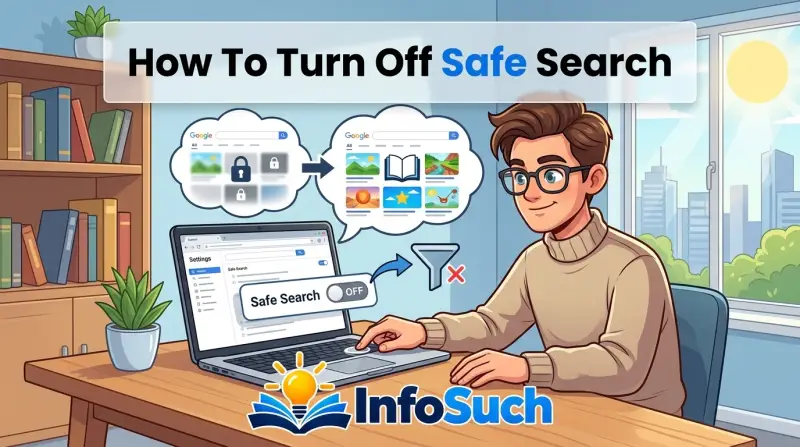
Safe search gets in the way more often than you'd think. You search for something specific, and half the results vanish because the filter decided they're inappropriate. It's not just about adult content, either.
Medical terms, historical photos, and even certain news articles get caught in the filter.
The fix is straightforward. How to turn off safe search depends on which device you're using and whether an administrator has locked the setting. As of 2026, Google's interface has stayed consistent across platforms, and the process remains quick once you know where to click.
Quick Answer
How to turn off safe search is a two-step process on most devices. On desktop, click Settings, then Search settings, then uncheck SafeSearch. On the mobile app, tap your profile, then Settings, then SafeSearch, then Off.
If you see a padlock icon, an administrator controls the filter. You'll need their approval to change it.
Is SafeSearch Locked on Your Device?
Before you change anything, figure out what you're dealing with. SafeSearch has two states: unlocked and locked. Unlocked means you can change the setting yourself.
Locked means someone else controls it, and no amount of clicking will help.
How to Spot the Lock
Open a Google search on the device right now. Look below the search bar. See a small padlock icon?
The filter is locked by an administrator.
A padlock appears when a school, workplace, or parent has enforced the filter through their account. The lock lives on the account itself, not the browser. Clearing cookies, switching browsers, or using incognito mode won't help.
If You See the Lock Icon
Here's the if/then breakdown:
- School or work device: The IT department controls the filter
- Family Link account: A parent or guardian controls the filter
- Borrowed device: The account owner controls the filter
In every case, the fix requires a conversation. Ask the administrator to lift the restriction if you have a legitimate research need. Many schools and workplaces will accommodate the request.
Some won't.
Do not try to bypass the lock with extensions, VPNs, or browser tricks. It violates acceptable use policies at most institutions and can get your device access revoked. Google's support page confirms that the lock icon indicates an admin-enforced policy.
If There's No Lock
You're free to change the setting yourself. No padlock means the account is yours to configure. The steps below walk you through every major platform.
Turning Off SafeSearch on Desktop
Desktop is the simplest place to start. The process works the same in Chrome, Firefox, Edge, and Safari because SafeSearch is a Google account setting, not a browser setting.
Step-by-Step for Desktop
- Go to google.com
- Click the gear icon in the bottom right corner
- Select "Search settings"
- Scroll to "SafeSearch filters"
- Uncheck "Turn on SafeSearch"
- Click "Save"
The gear icon sits in the bottom right of the search page. On some browsers, it's small and easy to miss. Look carefully.
Why It Works Across All Browsers
Changing SafeSearch in Chrome applies to your Google account, not the browser itself. Log into Firefox on the same machine and the setting carries over. The filter lives on Google's servers, not your computer.
The exception is when you're not signed in. Without an account, the setting is stored as a browser cookie. Clearing your cookies resets SafeSearch back to the default.
That's the most common reason people think the setting "won't stick."
Verify the Change
After saving, run a search for something SafeSearch would normally filter. If results come back unfiltered, you're done.
If the lock icon still appears next to the search bar, the setting didn't take. That points to an admin-controlled account, which we covered above. One more thing: Google sometimes re-enables SafeSearch after browser updates.
If the filter creeps back, repeat the steps. Takes about thirty seconds.
Turning Off SafeSearch on the Mobile App
The Google app on your phone has a different menu structure than the desktop browser. The steps are buried a bit deeper, but once you know the path, it's quick.
On the Google App (iPhone and Android)
- Open the Google app
- Tap your profile picture in the top right corner
- Tap "Settings"
- Tap "SafeSearch"
- Select "Off"
On some app versions, the menu is slightly different. If you don't see "SafeSearch" directly under Settings, look for "Search settings" or "General." The wording has shifted across recent updates, but the path stays similar.
On Mobile Browsers (Safari and Chrome Mobile)
Using a mobile browser instead of the app? The desktop steps work here. Go to google.com, tap the gear icon, find Search settings, and uncheck SafeSearch.
The mobile browser version of Google's search page uses the same settings panel as desktop.
One difference: mobile browsers show fewer options by default. You might need to tap "Switch to desktop site" to see the full settings list. That's a common gotcha.
iPhone vs. Android Differences
The Google app looks nearly identical on both platforms. But there's a subtle difference. On iPhone, the SafeSearch option sits at the top of the Settings list.
On Android, it's one or two rows lower, tucked below "Privacy" and "Account." Scroll a bit further.
Verify Your Change
Run a search for something sensitive. You should see results immediately. If you still get filtered results, force-close the Google app and reopen it.
Android sometimes holds the old setting in memory until you restart the app.
YouTube Restricted Mode: The Filter People Forget
You turn off SafeSearch on Google, then hop over to YouTube and find videos mysteriously missing. That's the separate filter: Restricted Mode.
YouTube filters content independently from Google's web search. It's designed to screen out potentially mature videos, but it often overreaches. Educational content about anatomy, historical violence, or certain music videos gets caught in the same net.
Turning Off Restricted Mode on Desktop
- Go to youtube.com
- Click your profile picture in the top right corner
- Scroll to the bottom of the menu
- Find "Restricted Mode" and click "Off"
The Off option shows a short description: "Don't filter potentially mature videos." That's the one you want.
Turning Off Restricted Mode on Mobile
- Open the YouTube app
- Tap your profile picture
- Tap "Settings"
- Tap "General"
- Scroll to "Restricted Mode"
- Toggle it to "Off"
On iOS, the General menu looks different. The Restricted Mode toggle sits at the bottom of the screen. On Android, it's a checkbox inside General.
If Restricted Mode Is Grayed Out
Sometimes the toggle won't respond. That's the same admin lock we talked about earlier. If Restricted Mode is disabled or stuck, YouTube is being managed by a network administrator.
You'll need their permission to change it.
Parental controls on YouTube keep Restricted Mode permanently on. That's by design. The platform is configured for a child audience.
To turn it off, you'd need to remove the supervision from the parent's side. The YouTube app won't let you bypass it, and you shouldn't try.
Turning Off SafeSearch on Bing
Google isn't the only search engine with a filter. Bing has its own SafeSearch, and it works similarly but lives in a different place.
Step-by-Step for Bing Desktop
- Go to bing.com
- Click the hamburger menu in the top right corner
- Select "Settings"
- Click "Search settings"
- Find "SafeSearch"
- Select "Off" and hit "Save"
Bing's SafeSearch has three options: Strict, Moderate, and Off. Off gives you the most complete results. Moderate filters some adult content but keeps most search results intact.
Bing SafeSearch on Mobile
The Bing app follows the same path. Tap your profile icon, then Settings, then Search settings. The SafeSearch selector appears near the top.
Pick Off, and you're done.
Why People Use Both Google and Bing
Some users prefer Bing for image search or video search. The filter behaves differently across those verticals. Bing's SafeSearch tends to be less aggressive than Google's at moderate settings.
If you're finding Google too restrictive, Bing might give you what you need without touching the settings at all.
Troubleshooting: When SafeSearch Keeps Turning Back On
One of the most annoying issues is when SafeSearch re-enables itself. You change it, it holds for a few days, then snaps right back. Usually, it's one of a few things.
Browser Cookies and Cache
As we covered, SafeSearch is stored as a cookie when you're not signed into a Google account. Clearing your browser cookies resets the filter. If you clear cookies regularly, you'll notice SafeSearch turning back on frequently.
The fix is to sign into your Google account. Logged in, the setting stores on the account itself, not as a cookie. It survives cookie clears and cache wipes.
Phone App Updates
Mobile apps sometimes reset settings after updates. The Google app and YouTube app have both done this in the past. Force-closing the app after changing the setting helps.
So does verifying the setting after each major app update.
Network-Level Filtering
Your internet service provider or router might be filtering content. Some ISPs offer optional content filtering as a default feature. School networks and corporate networks do this too.
You can't change network-level filtering through your Google settings. If the filter is coming from the network, you'll need to contact whoever manages it.
Multiple Accounts on the Same Device
If you have multiple Google accounts, SafeSearch only applies to the active account. A family member might be using an account with SafeSearch locked on. When you log into your account, the setting might not carry over.
Check which account is active in the app or browser.
If You're Locked Out: School, Work, and Family Link
We touched on this earlier, but it deserves a full section because it's a common wall. If you see a lock icon, here's what you need to know.
School Devices
School-issued Chromebooks and tablets have SafeSearch enforced through the Google Admin console. The student account can't change it. The device itself can't change it.
The setting is pushed down from Google's servers based on your school account's policy.
Your best bet is to ask a teacher or IT staff member. Some schools lift restrictions for senior projects or research papers. Be specific about what you need and why.
Vague requests get denied.
Work Devices
Employers enforce SafeSearch for two reasons: productivity and liability. It blocks distracting content and protects the company from someone accessing inappropriate material on work equipment.
Again, the admin console controls this. There's no local setting to change. You could ask IT for an exception if your job requires it.
Journalists, researchers, and medical writers sometimes get exceptions. It depends on your workplace.
Family Link
Family Link is Google's parental control app. It manages your child's Google account, including SafeSearch. The parent's phone has full control.
If you're the parent, open the Family Link app, find the child's account, and adjust the filter from there. If you're the child, you need a parent to change it. There's no workaround.
What Not to Do
Do not try to bypass admin controls. Using a VPN to route around network filtering, downloading alternative browsers, or using proxy sites to access search engines will typically be flagged. Schools and workplaces monitor network traffic.
Getting caught with a bypass tool can lead to disciplinary action.
Do not use someone else's account to access unrestricted search. That's a policy violation and can get both accounts suspended.
Common Mistakes to Avoid
People make predictable errors when trying to disable SafeSearch. These four mistakes cause most of the frustration.
Turning It Off in the Wrong Place
The Google app and the Google account settings are different. Changing settings inside the app doesn't always carry over to the browser. Change the setting in the account settings instead.
That covers all platforms.
Not Checking the Active Account
You can have five Google accounts logged in on one device. SafeSearch applies per account. If you change the setting on one account, the other four still have the filter.
Always check which account is active before troubleshooting.
Assuming SafeSearch Equals Parental Controls
SafeSearch is only one part of parental controls. Family Link, YouTube Kids, and Android parental controls are separate systems. Turning off SafeSearch doesn't disable those.
If you think SafeSearch is the only filter on a child's device, check for Family Link and app restrictions too.
Expecting the Setting to Affect All Browsers Without Login
As we mentioned, SafeSearch stores in a cookie when you're not signed in. Incognito mode, private browsing, and guest profiles all start fresh. They fetch a new cookie, and SafeSearch snaps back on.
Sign into your Google account in every browser you use.
Alternative Search Engines Without Broad Filters
Sometimes you just want a search engine that doesn't filter aggressively. Options exist beyond Google and Bing.
DuckDuckGo
DuckDuckGo positions itself as a privacy-focused search engine. It doesn't filter adult content by default. The anonymity means no tracking and no personalized filtering.
It's a solid choice for research that Google's filter might block.
Startpage
Startpage acts as a privacy proxy for Google. It pulls Google results but strips away tracking and filtering. Some users find it gives the best of both worlds: familiar results without accommodative filtering.
Brave Search
Brave Search is independent, with its own index. It has a SafeSearch-like setting, but it defaults to "Moderate" which is less restrictive than Google's defaults. You can switch it off entirely without facing account locks.
Who These Options Are For
These alternative engines work well for one-off research sessions. They're less useful if you need consistent, account-based settings across devices. Google and Bing store your preference on your account, so you don't have to adjust each time.
DuckDuckGo and Brave mostly handle filtering locally or per-session.
Frequently Asked Questions
Does turning off SafeSearch work for the whole account?
Yes. When you're signed into your Google account, the setting applies anywhere you search with that account. Desktop, mobile, and tablet all reflect the change instantly.
IS SafeSearch the same as parental controls?
They're close but not identical. SafeSearch filters explicit content from search results. Parental controls are broader management tools that include screen time limits, app restrictions, and content filters across every app.
Why does SafeSearch keep re-enabling itself?
The most common cause is not being signed into your account. Without a login, the setting stores in a cookie. Clearing cookies resets the filter.
App updates and network-level filtering can also re-enable it.
Can I turn off SafeSearch on someone else's account?
Only if you have access to that account and the login credentials. For managed devices, including school and work accounts, external users can't change the setting. Parental accounts through Family Link can manage the filter for child accounts.
Does Bing SafeSearch work differently from Google's?
Bing uses the same three-tier system: Strict, Moderate, and Off. The difference is the menu location and the default setting. Bing defaults to Moderate, while Google Defaults to Strict for supervised accounts.
Decision Guide: Which Path Is Right for You?
Use this breakdown to find your exact next step.
| Your Situation | How It Applies | Best Option |
|---|---|---|
| Personal phone, Google app | No admin control | Turn off SafeSearch in the app settings |
| Personal laptop, no account | Browser cookie stores setting | Sign into your Google account, then change it |
| School device | IT admin controls the filter | Request permission from IT |
| Work device | Employer policy enforced | Ask IT for a specific bypass |
| Child's phone (Family Link) | Parent controls the filter | Use the Family Link app to adjust |
| YouTube video blocked | Restricted Mode is separate | Turn off Restricted Mode in YouTube settings |
| All searches filtered at network level | ISP or router filtering | Contact network administrator |
Most people just need the first or second row. The remaining rows apply when someone else controls the device or network.