
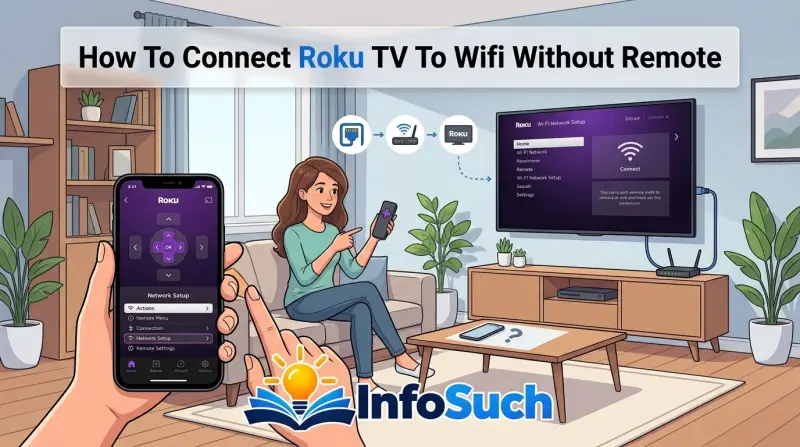
Losing your Roku remote is one of those small household disasters that feels bigger than it should. You just want to watch something, and suddenly you're digging between couch cushions, checking coat pockets, and wondering if the dog ate it. The real panic sets in when you realize your TV isn't connected to Wi-Fi, and you have no way to navigate the menus.
That's exactly the situation where knowing how to connect Roku TV to wifi without remote becomes the difference between a wasted evening and a five-minute fix.
The good news is that the solution usually doesn't require buying anything. As of 2026, every Roku TV supports wireless networking on both the 2.4 GHz and 5 GHz bands, and the Roku mobile app remains free on both Android and iOS. But here's the catch: the app only works when your phone and TV share the same network, which creates a classic chicken-and-egg problem when your TV is offline.
That's why the best approach depends entirely on your specific hardware setup, and we're going to walk through every possible path.
Problem / Pain Point: What Happens When You Lose Your Roku Remote and Need Wi-Fi
Let's be honest about how you got here. Maybe you just moved into a new apartment and your Roku TV is sitting on the floor, still showing the default "Welcome" screen. Maybe you changed internet providers, which means a new router and a new network name, and your TV has been stubbornly trying to connect to a network that no longer exists.
Or maybe the remote simply vanished into the void, and you've spent forty minutes looking before giving up.
The core problem is that a Roku TV without an active network connection is essentially a dumb display. It can't stream, it can't download updates, and in some cases, it won't even let you get past the initial setup screen. And unlike older TVs with a simple physical menu button, Roku TVs hide their settings behind a software interface that normally requires a pointer or directional pad.
Here's what makes this frustrating: many Roku TV models only include physical power, volume, and input buttons on the chassis. There's no physical menu button, no directional pad, and no way to scroll through settings without some kind of remote. That's a deliberate design choice from Roku, who expects you to always have the remote, but it becomes a serious obstacle when the remote is missing or the batteries are dead.
To make matters worse, a factory reset is often the first suggestion you'll find online. That's terrible advice in this situation. Resetting the TV wipes all your settings and leaves you staring at a fresh setup screen, which still requires a remote to complete.
You've just made the problem worse, not better.
The real challenge is finding a way to control the TV's software interface without the remote. There are five distinct paths to do this, and the right one for you depends on what hardware you have access to. We're going to run through them in order of simplicity.
Quick Answer / Key Insight: The One Thing You Absolutely Need First
The fastest way to connect a Roku TV to Wi-Fi without a remote is to use the free Roku mobile app. Install it on your phone, join the same Wi-Fi network as your TV, then use the app's remote feature to open Settings, Network, and Setup Connection.
If your TV is offline and can't join that network yet, the app won't find it. In that case, you'll need a bridge method. Your options are to use physical buttons on the TV, an IR blaster phone, an Ethernet cable, or a temporary mobile hotspot.
Each of these gets you into the network settings menu.
Pick the quickest option you have available. Don't overthink it.
Before You Start: Condition Variables to Check
Before you can pick the right solution, you need to know what you're working with. The decision tree branches based on four simple questions, and you should answer all of them before attempting anything. This takes less than a minute, and it prevents you from wasting time on a method that won't work.
First, does your Roku TV have physical buttons beyond just power? Look along the back edge, the bottom edge, or the left side of the panel. Some models have a single joystick button that handles power, volume, and acts as a directional pad.
Other models have a row of discrete buttons. If you see a button that looks like it could be a directional pad or select button, you're in good shape.
Second, does your phone have an IR blaster? This is a small infrared transmitter that's almost exclusively found on Android phones, primarily from brands like Xiaomi, Redmi, POCO, and some Samsung Galaxy and Huawei models. iPhones never had them. If you're not sure, check the manufacturer's specification sheet online.
If you bought your phone in the last three years, and it wasn't a mid-range Xiaomi or similar, it probably doesn't have one.
Third, does your TV have an Ethernet port? Look on the back panel where the HDMI and USB ports live. Not all Roku TVs have one, but many mid-range and higher-end models do.
If you have an Ethernet port, an Ethernet cable, and your router is within reach, this is hands-down the easiest workaround.
Fourth, do you have the Roku mobile app installed on your phone? It's available on the Google Play Store and Apple App Store, and it's a requirement for several of the methods below. Even if you can't use it immediately, you'll need it later to switch your TV from a wired to a wireless connection.
Here's a quick reference table to help you see where you stand:
| What you have | What it enables | Best method for you |
|---|---|---|
| Physical directional buttons on TV | Direct menu navigation | Use the side buttons |
| Phone with IR blaster | Full remote control without Wi-Fi | Use an IR remote app |
| Ethernet port + cable | Temporary internet connection | Connect via cable, then switch to Wi-Fi |
| Smartphone (any type) | Remote control once TV is online | Use the Roku app as your remote |
| None of the above | No direct control path | Buy a replacement remote |
Once you know which items you have, the path forward becomes clear. Let's walk through each branch in detail.
Decision Branch 1: Use Physical TV Buttons (If You Have Them)
If your Roku TV has a physical directional pad or joystick button, you can navigate the entire interface without a remote. This is the most straightforward solution, and it requires no additional hardware or apps.
The physical button location varies by brand. TCL Roku TVs typically have a single joystick button on the back edge near the right side. Hisense models often have a row of buttons on the bottom edge.
Sharp, RCA, and JVC models may have buttons on the left or right side of the panel. Take a good look around the edges before you give up.
Step-by-Step: Navigate to Network Settings Using Only the Side Buttons
The process is the same across all models, even though the button placement differs.
Start by pressing the power button to turn the TV on. Wait for the Roku home screen to load, or for the setup wizard to appear if the TV is in factory reset state. Then use the directional button to navigate.
If you have a joystick, press it up, down, left, or right to move the on-screen highlight. If you have separate buttons, they'll usually be labeled with arrows or a directional icon.
Next, scroll to the Settings option in the left-hand sidebar. It's usually at the bottom of the menu list, represented by a gear icon. Press the select button, which is either the joystick press or a dedicated OK button.
From Settings, scroll down to Network and press select. Then choose "Set up connection." Select "Wireless" from the two options. The TV will scan for available networks, and you'll see a list of nearby networks.
Scroll to your network name and press select. A keyboard will appear on screen.
Here's where the physical button method gets tedious. You'll need to use the directional pad to move through the on-screen keyboard, letter by letter. There's no tab key, no autocorrect, and no way to paste a password.
If your Wi-Fi password is 16 characters long with uppercase letters, numbers, and symbols, expect to spend five or ten minutes on this step alone.
Pro Tip: How to Use the Joystick Button for Menu Navigation
The joystick button on many TCL Roku TVs is more capable than it looks. You can press it in eight directions, not just four, which makes diagonal movement possible. That's genuinely helpful when you're hunting for a specific letter on the on-screen keyboard.
Here's a trick that saves real time: if you're moving through the on-screen keyboard, use the directional pad to highlight a letter, then press the select button to enter it. Don't press and hold the joystick in the direction of movement, because that sometimes triggers selection instead. Just tap, move, tap, move, and you'll get into a rhythm.
One thing to keep in mind: not all Roku TV models with physical buttons allow full menu navigation. Some older or budget models only include power, volume, and input buttons, with no directional capability. If that's your situation, scroll down to the next decision branch because this one won't help you.
Also, if the TV is currently stuck on a blank screen or a "No Signal" message, the physical buttons should still bring up the Roku menu. Press the home button if your TV has one, or press any directional button to wake the interface from sleep. If nothing appears after 30 seconds, unplug the TV, wait a full minute, and plug it back in before trying again.
Decision Branch 2: Use a Phone with an IR Blaster (No Wi-Fi Needed)
A phone with an infrared blaster is the closest thing to a magic wand in this situation. It doesn't need Wi-Fi, it doesn't need Bluetooth, and it doesn't need the TV to be on the same network. It uses the same infrared signals as a traditional universal remote, which means it works even when the TV is completely offline or sitting on the initial setup screen.
The catch is that almost no modern flagship phones include infrared transmitters. The technology was common in the mid-2010s, appearing in phones like the Samsung Galaxy S6 and S7 era, but it now lives almost entirely on budget-to-midrange Android phones from companies like Xiaomi, Redmi, and POCO. If your phone is an iPhone, this branch is not for you.
If you have a Samsung Galaxy, Pixel, or OnePlus, you almost certainly don't have an IR blaster either.
Step-by-Step: Set Up an IR Remote App on Android
If you've confirmed that your phone has an IR blaster, the setup is surprisingly simple.
Start by going to the Google Play Store and downloading a universal remote app. The most commonly recommended options include Mi Remote, which is preinstalled on many Xiaomi devices, and third-party apps like AnyMote. Look for one that supports the Roku TV brand you own, which could be TCL, Hisense, Sharp, RCA, or JVC.
Open the app and select "Add Device" or the plus icon. Choose "TV" as the device type. Select your TV brand from the list.
The app will ask you to point the phone's IR emitter at the TV and press a test button. The emitter is almost always at the top of the phone, near the headphone jack area. Within a few seconds, you'll test a power button, a volume button, and an input button to establish the correct code database for your TV.
Once the TV responds to those basic commands, the app gives you a full remote interface on your phone screen. You'll have a directional pad, an OK button, a home button, and a back button. That's everything you need to navigate the Roku interface, open Settings, Network, and enter your Wi-Fi password.
When This Works Best (and When It Won't)
This method excels in one specific scenario: when the TV is already at the home screen or setup screen and you just need to get into the network settings. The IR blaster gives you full control immediately, with zero configuration required beyond the initial code setup. It's also a permanent solution, in the sense that you can keep the app as a backup remote indefinitely.
But there are limits. IR signals require line of sight, so you'll need to point the phone directly at the TV's IR receiver sensor. That sensor is usually near the bottom edge of the TV, sometimes indicated by a small dark lens.
If your TV is wall-mounted or the sensor is blocked, this method will fail no matter how good the app is.
You'll also run into trouble if you have a Roku streaming stick or Roku box rather than a Roku TV. Those external devices are controlled over Bluetooth or Wi-Fi, not IR, so an IR blaster won't communicate with them at all. This method is strictly for Roku TV models, not for standalone Roku players.
Finally, be prepared for some quirks. The on-screen keyboard in Roku's network settings doesn't always respond well to rapid directional presses from third-party IR apps. Slow down, press one direction at a time, and give the TV a beat between presses.
It's not ideal, but it's functional. And if you're entering a complex password, take a photo of it before you start so you're not squinting at a WiFi sticker from across the room.
Decision Branch 3: Connect via Ethernet Cable (Easiest Workaround)
If your Roku TV has an Ethernet port, this is the easiest way to get the TV back online without touching the remote. You plug in a cable, and the TV automatically detects the wired connection. No navigation, no settings, no password entry required.
Once the TV has an active internet connection, you can use the Roku mobile app to take over and switch to Wi-Fi.
This method works because Roku TVs are designed to automatically use a wired connection if one is present. The moment you connect the Ethernet cable, the TV establishes a network link and registers as an active device on your router. You'll see the network status change within about ten seconds of plugging in the cable.
There is one catch. This method only works if your TV is already past the initial setup screen. If the TV is sitting on the "Welcome to Roku" screen with no home menu visible, Ethernet won't skip that setup wizard.
You'll still need some way to press buttons. However, if the TV is showing the home screen or an error message about network connectivity, Ethernet will give you enough internet access to proceed.
Step-by-Step: Plug in the Cable and Let the TV Do the Rest
Here's the full workflow for switching from Ethernet back to Wi-Fi.
First, locate the Ethernet port on the back of your Roku TV. It's usually grouped with the HDMI and USB ports, and it looks like a slightly wider phone jack. Plug one end of the Ethernet cable into the TV, and the other end into your router or a wall Ethernet jack.
If your router is in a different room, you can use any Ethernet cable up to 100 meters in length, which is about 328 feet, and still maintain a stable connection.
Next, wait for the TV to detect the network. A small notification may appear in the corner, but often there's no visible change. To confirm the connection, check the network status on the home screen if you can navigate there using the Roku mobile app, but that's a later step.
For now, just give it thirty seconds.
Open the Roku mobile app on your phone. Make sure your phone is connected to the same router, either via Wi-Fi or, more likely, the same network that the TV is now using through Ethernet. The app should discover the TV automatically.
If it doesn't, tap the Devices icon at the top right and select your TV from the list.
Once the app is connected, use the on-screen remote to open Settings. From there, scroll to Network and select "Set up connection." Choose Wireless, and the TV will scan for available networks. Select your Wi-Fi network, enter the password, and you are done.
You can then unplug the Ethernet cable, and the TV should continue using the Wi-Fi connection.
What to Do After Ethernet: Use the Roku App to Switch to Wi-Fi
The reason you switch to Wi-Fi after Ethernet is because a wireless connection is just more convenient. The long cable is only a temporary solution. And once the TV is connected to Wi-Fi, the Roku app will continue to work as your remote, so you don't even need to buy a replacement.
If you have an old router lying around, you can also use it to extend your network. Plug the old router into your main router with an Ethernet cable, and the TV can connect to that secondary network by cable. But it's simpler to just switch the TV over to your existing Wi-Fi network.
Keep in mind that not all Roku TV models have Ethernet ports. Budget models from TCL, Hisense, and RCA often skip the wired connection entirely to save cost. If you look at the back panel and only see HDMI, USB, and a coaxial connector, then this branch doesn't apply to you.
Move on to the next solution.
Decision Branch 4: The Mobile Hotspot Trick (When the TV Is Offline)
This is the cleverest workaround, and it's perfect for a very specific situation. If your TV is stuck trying to connect to an old Wi-Fi network that no longer exists, you can trick it into connecting to a new one by recreating the old network using your phone's mobile hotspot. The TV is still holding onto the old network name and password.
When it sees a network with the exact same name and password, it automatically connects like it used to. Then you can use the Roku app to change the TV's network settings to your actual Wi-Fi.
The only requirement is that you know the old network name and password. That could be the router from your previous apartment, the default network name printed on your old router, or the guest network from a hotel. If you know those credentials, this method works even if the TV has been sitting offline for weeks.
There's a second requirement too. Your phone needs to support a mobile hotspot with a custom network name. Almost every Android phone and iPhone allows you to change the hotspot name and password in the settings.
So this is rarely a limitation.
Step-by-Step: Create a Temporary Hotspot with the Same Network Name and Password
Start by opening your phone's Settings menu. Find the Personal Hotspot section on iPhone, or the Tethering and Portable Hotspot section on Android. Tap the option to configure the hotspot.
You'll see a field for the network name, which is also called the SSID, and a field for the password. Type the old network name exactly as it appeared, including uppercase and lowercase letters. Then enter the old password exactly as well.
Enable the hotspot. Now your phone is broadcasting a Wi-Fi network that matches the TV's old network. Wait thirty to sixty seconds.
The TV should automatically connect to your phone's hotspot, since it's been scanning for that exact network name. If the TV is showing a "Network connection lost" screen, it will clear on its own.
Once the TV is connected, you'll be in a temporary state where both the TV and your phone are on the same network. The phone is the hotspot host, and the TV is a client on that hotspot. Open the Roku mobile app.
It should find the TV immediately. Use the app's remote to go to Settings, Network, and then "Set up connection." Select your real Wi-Fi network from the list, enter its password, and wait for the TV to connect.
After the TV connects to the real Wi-Fi, turn off your phone's hotspot. The TV will now use your home network as usual. The connection is permanent, so this isn't just a temporary fix.
You only need to do this once.
Why This Works: The TV "Thinks" It's Still on the Old Network
The TV absolutely is not smart about this. It simply stores the last known Wi-Fi network name and password in its memory. When booting up, it scans for that network, connects, and then checks if the internet is reachable.
If the network name and password match exactly, the TV is satisfied, regardless of what device is actually broadcasting the signal.
The hotspot trick takes advantage of this blind trust. When you recreate the same network, the TV connects without asking for anything. That gives you a window where you can access the TV's menus and redirect it to your real network.
The only risk is that mobile hotspot connections sometimes use different encryption or security protocols than your home router. But standard WPA2 encryption, used by virtually all home routers, is also the default on most phone hotspots. So this usually works without a hitch.
One thing to remember: your phone needs to have a cellular data connection for the hotspot to function. The TV will use the phone's data plan during the moment it's connected to the hotspot. That's fine for the few minutes it takes you to switch the TV over to the real Wi-Fi.
Just don't forget to turn the hotspot off afterward, or you'll notice a jump in your data usage.
Decision Branch 5: Borrow a Universal Remote or Buy a Replacement
If you've exhausted every other option without success, it's time to bring in hardware. This is the most reliable but least convenient solution. You can either borrow a universal remote from a friend of neighbor, or buy a replacement remote for your Roku TV.
Both work, but they have different trade-offs.
A universal remote is usually the cheaper and faster option. You can find them at most electronics stores or online for $10 to $25. They use infrared signals, which means they don't need to be paired over Wi-Fi.
You just program them with the correct code for your TV brand, and they start working immediately.
An official Roku replacement remote is more expensive, usually around $20 to $30. But it's guaranteed to work with your TV. It comes preconfigured for Roku devices, and it can pair with your TV using Wi-Fi Direct once the TV is online.
The downside is that if the TV isn't set up yet, you may not be able to pair the remote right away.
How to Program a Universal Remote for Roku TV
Programming a universal remote is straightforward, but the exact steps depend on the brand you have. Most universal remotes follow the same pattern.
First, put the remote into TV mode. This is usually done by pressing the TV button at the top of the remote. Then press and hold the Setup button until the red LED indicator lights up.
Depending on the brand, the LED may blink or stay solid. Next, enter a code for your TV brand using the number pad. Each remote comes with a list of codes in the manual, and there are also codes for TCL, Hisense, Sharp, RCA, and JVC Roku TVs.
After entering the code, aim the remote at the TV and press the Power button. If the TV turns on, the code is correct. If not, try the next code from the list.
Some universal remotes also have a code search feature that cycles through codes automatically. You hold down the Setup button, press the power button, and then repeatedly press the channel up button until the TV responds. This is slower but works if the manual is lost.
Once the remote controls power, volume, and input, you'll have access to all the buttons needed to navigate the Roku interface. That includes a directional pad, an OK or Select button, a Home button, and a Back button. Use those to go to Settings, Network, and enter your Wi-Fi password.
When to Just Buy a New Remote (Cost and Time Trade-Off)
A universal remote is only worth buying if you plan to use it as a permanent backup. If you just want to get your TV online today and then forget about it, a $15 universal remote is a smart investment. It gives you immediate control, and you can keep it in a drawer for the next time your official remote goes missing.
A replacement official remote makes more sense if the original remote is truly dead or lost and you want a long-term solution. The official remote offers voice control, shortcut buttons, and no programming required. But you might pay twice as much, and you'll still need to navigate through the setup process once it arrives.
No matter which option you pick, the math is simple. Time is money. If you've spent more than an hour trying to connect the TV without a remote, buying a $20 remote is cheaper than your time.
The decision guide in the next section will help you pick the fastest path.
Mistakes to Avoid: Common Errors That Lock You Out Further
Plenty of people turn a small problem into a big one by making avoidable mistakes. The biggest one is hitting the factory reset button. That's a last resort, not a first step.
It wipes all your settings, and then you're stuck at the setup screen with even fewer options than before.
The second most common mistake is forgetting the Wi-Fi password. It sounds silly, but it happens constantly, especially when you just set up a new router. Before you attempt any of the methods in this article, find the password.
It's usually printed on a sticker on the router itself, or it's stored in the Wi-Fi settings on your computer. Write it down before you start.
Another mistake is assuming the Roku mobile app works over cellular data. It doesn't. The app communicates with the TV over your local Wi-Fi network.
If your phone is on a different network than the TV, the app won't discover it. That's why the hotspot trick and the Ethernet method work, because they get both devices onto the same network.
Don't Factory Reset as a First Step
We already touched on this, but it deserves its own warning. A factory reset erases your TV's network settings, apps, and preferences. When the TV restarts, it shows the full setup wizard.
That wizard requires you to select a language, connect to a network, and sign in to your Roku account. Without a remote or a phone on the same network, you're completely stuck.
Factory reset should only be done if your TV is malfunctioning in other ways, and even then, you should have a working remote in hand before starting. There are plenty of tutorials online showing how to factory reset a Roku TV using physical buttons or a pin hole on the back panel. Don't do it unless you have a remote ready.
Don't Forget the Wi-Fi Password
You'd be surprised how many support threads end with the user realizing they never knew the password. The Roku TV requires the Wi-Fi password to connect to your network. If you don't have it, no method in this article will get you onto your Wi-Fi.
If the password is written on the router, take a photo of it. If the router is in a closet or the label is worn away, use a computer that is already connected to the network. The password is stored in the operating system.
On Windows, you can view it through the Network Settings. On a Mac, you can find it in Keychain Access. Even if you've lost your remote, the password is likely recoverable.
Don't Assume the Roku App Works Without a Shared Network
The Roku app relies on local network discovery. It sends a broadcast packet over the same Wi-Fi that your phone is connected to, and the TV responds on that same network. If your phone is using cellular data, the app simply cannot see the TV.
If your phone is on a different Wi-Fi band, like a guest network, the TV might be isolated.
This is why the mobile hotspot trick is so elegant. It creates a temporary network where both devices live together. The Ethernet method does the same thing via the physical network.
Both solutions solve the discovery problem before you ever open the app.
Decision Guide: Quick Reference Table for Which Method to Use
By now you have a full toolkit of options. But if you're short on time, this decision guide will point you toward the fastest solution for your exact situation. The methods are ranked by speed and simplicity for each scenario.
| Your situation | Best method | Time required | Extra tools needed |
|---|---|---|---|
| TV has physical directional buttons | Physical TV buttons | 5–10 minutes | None |
| Phone has an IR blaster | IR remote app | 2–5 minutes | IR blaster phone |
| TV has an Ethernet port | Ethernet cable | 5 minutes | Ethernet cable |
| TV is offline but remembers old network name/password | Mobile hotspot trick | 5 minutes | Smartphone, old network credentials |
| None of the above | Buy a universal or replacement remote | 1–2 days shipping | Universal or official remote |
| TV is stuck on initial setup screen | Buy a remote | 1–2 days shipping | Universal or official remote |
Here's the decision path in a simpler format.
- Do you have physical buttons? Use them.
- No buttons but you have an IR phone? Use the IR app.
- No IR phone but you have Ethernet? Plug in a cable.
- No Ethernet but you remember the old network? Use the hotspot trick.
- Nothing else? Buy a remote.
One final note on timing. Each of the software methods takes less than ten minutes. The remote purchase takes at least a day for shipping.
So always exhaust the free methods first.
The next section answers the most common questions people ask after trying these methods.
Frequently Asked Questions
Can I connect my Roku TV to Wi-Fi using my phone without a remote?
Yes, but only after the TV is on the same network as your phone. The Roku mobile app acts as a full remote once connected. If the TV is offline, you first need to use a physical button, IR blaster, Ethernet cable, or hotspot trick.
Then the app takes over.
Does the Roku mobile app work if my TV is offline?
No. The app discovers the TV over your local Wi-Fi network. If the TV isn't connected to that same network, the app cannot find it.
Your phone and TV must share the same router or hotspot. That's why the Ethernet and hotspot methods exist.
How do I reset my Roku TV without a remote?
Use the physical button on the TV if it has one. Press and hold the power button for about 15 seconds, or until you see the blinking light. That often triggers a factory reset.
But avoid doing this unless you have a working remote ready, because a reset will leave you at the setup screen.
Can I use a universal remote to set up Roku TV Wi-Fi?
Yes. Any universal remote that supports your TV brand can navigate the Roku menu. Program it using the code list in the manual, or use the search feature.
Once the remote controls the directional pad and OK button, you can reach Settings, Network, and enter your Wi-Fi password.
What if my Roku TV doesn't have an Ethernet port?
Then use the mobile hotspot trick or buy a remote. The hotspot method works if you still know the old network name and password. If you don't, a universal remote is the fastest fix.
Many budget Roku TVs skip Ethernet to keep the price down.
How do I find my old Wi-Fi network name and password for the hotspot trick?
Check the sticker on your old router for the SSID and default password. If the router is gone, look through your phone's saved Wi-Fi settings. On iPhone, go to Settings, Wi-Fi, and tap the info icon.
On Android, the saved networks are in the Wi-Fi settings menu. You can also check the router's admin page if you still have it connected.
Final Recommendation: The Best Path for Your Situation
Here's the short version. Start with free methods. Then move to hardware only if you have to.
If your Roku TV has physical buttons, use them. They take a few extra minutes, but they cost nothing and work every time. If your Android phone has an IR blaster, set up the universal remote app and you'll have a working remote in under five minutes.
If Ethernet is available, plug in a cable and let the TV find the network. Then switch to Wi-Fi with the app. If you remember the old network credentials, the hotspot trick is your next best move.
It's clever, free, and takes about five minutes total.
If none of those work, just buy a universal remote. You'll spend around $15 and have it in a day or two. That's cheaper than the hours you might lose fumbling with other fixes.
Per Roku's official support documentation, the Roku mobile app is compatible with all Roku TV models, so once the TV is online, your phone becomes the remote and you can skip buying a replacement altogether.
One last tip that saves future headaches. Write down your Wi-Fi password and keep it near the TV. Every one of these solutions gets easier when you have the password in hand.
And once you're connected, set up the Roku app as a backup remote so you never have to go through this again.