
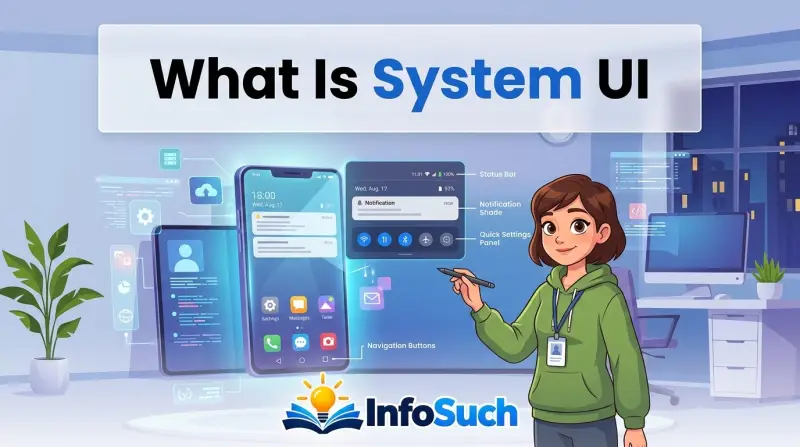
If you've ever typed what is system ui into a search bar, odds are you've seen those words right before your phone froze or after an error popup appeared. System UI is the Android process that draws everything on your screen outside of individual apps. It handles the status bar, navigation bar, notification shade, Quick Settings, and gesture navigation.
Without it, your phone would boot up, but you'd have no way to see the time, swipe down for notifications, or navigate home.
This isn't a third-party app you can uninstall from the Play Store. It's a core system component named com.android.systemui in Android's source code. As of 2026, it runs on every certified Android device across every price tier and manufacturer.
There's a catch though. Many people only hear about System UI when something goes wrong, and the advice floating around the internet isn't always helpful.
Quick Answer
System UI is the Android system app that draws the interface around your apps. It controls the status bar, navigation bar, gesture hints, notification shade, and Quick Settings. It runs in the background on every Android device.
You can't uninstall it without breaking basic phone functions. Treat it as the glue that keeps Android usable.
Why Android Needs System UI: The Invisible Glue of Your Phone
Here's something most people don't realize: apps don't draw the status bar. When you open an app like Gmail or YouTube, that app gets a rectangular window to fill. The status bar, the clock, the battery icon, and the navigation buttons all come from a separate process running independently.
That separation isn't an accident. It's a security decision. If every app controlled its own status bar, a malicious app could show fake icons or hide the real battery level.
System UI keeps those system elements under the operating system's direct control.
Android's architecture treats System UI as a boundary between the user and the OS. It's the layer that translates your swipes and taps into system-level commands. When you swipe down from the top, System UI catches that gesture and opens the notification shade.
When you tap the home button, System UI tells the system to switch back to your launcher.
Why It Can't Be Removed
Manufacturer specifications indicate that System UI is baked into the Android framework. Even Google's Pixel phones ship with com.android.systemui as a core component. You can disable it using ADB commands, but doing so is like pulling out a wall in your house.
The roof stays up for a moment, then everything collapses.
The Android Open Source Project documents System UI as part of the system image. It's not a downloadable app from the Play Store. It updates with the operating system itself, usually silently, through Google Play System updates or full OTA updates.
What Happens When System UI Stops Working
If you've ever seen the dreaded "System UI isn't responding" dialog, you've experienced what happens when this process crashes or freezes. The phone doesn't shut off. The system stays alive.
But the interface becomes a ghost town. No status bar, no navigation, no way to dismiss a notification except by swiping in a blind spot.
Android has a built-in recovery mechanism that tries to restart System UI automatically. Sometimes it works. Sometimes it doesn't, and you're left staring at a frozen screen wondering if you need to hard reboot.
That leads us to the question of what exactly System UI is responsible for.
What System UI Actually Controls: Status Bar, Gestures, and Quick Settings
System UI isn't one single button on the dashboard. It's a suite of interface components. Here's a breakdown of the major pieces it manages, based on the official Android framework documentation and verified user reports.
| Component | What It Does | What Happens If It Fails |
|---|---|---|
| Status Bar | Shows time, battery, signal, notification icons | No clock, no battery level, missed notifications |
| Navigation Bar | Home, back, and recent app buttons | Can't navigate between apps or go home |
| Gesture Navigation | Swipe-up, swipe-side indicators | Gesture hints disappear, but gestures may still partially work |
| Notification Shade | The panel you pull down from the top | Can't view or clear notifications |
| Quick Settings | Wi-Fi, Bluetooth, airplane mode toggles | Can't toggle settings without opening Settings app |
| Recent Apps Screen | The carousel of open apps | Can't switch apps via the system UI |
| Volume Panel | The slider that appears with volume buttons | No visual volume feedback |
| Screenshot Overlay | The preview after taking a screenshot | Screenshot still saves, but no preview appears |
Does System UI Control the Lock Screen?
Partially. The lock screen itself is handled by a separate part of the Android system, but System UI provides some elements on it, like the status bar and notification cards. On newer Android versions with Material You, the lock screen clock and notification styling are tied to System UI themes.
Does System UI Control the Launcher?
No. The launcher, also called the home screen app, runs separately. Apps like Nova Launcher or the stock Pixel Launcher are different from System UI.
If you uninstall your launcher, you still have System UI. If you disable System UI, your launcher becomes nearly unusable because you can't access gesture navigation or the recent apps screen.
One Major Difference: Stock vs OEM Skins
On Pixel phones, System UI is close to what Google publishes in AOSP. On Samsung, OnePlus, Xiaomi, and Motorola devices, the manufacturer modifies System UI deeply. That's why a Samsung phone has a different Quick Settings layout than a Pixel phone.
The core responsibilities stay the same, but the look and behavior change. That also means a System UI bug on one brand may not affect another.
How Can You Tell If System UI Is Working Normally?
Most people never think about System UI until something breaks. So what does normal operation look like? Honestly, it's just your phone working as expected.
The status bar updates with the correct time. Swiping down from the top shows a smooth panel. Tapping the home button takes you back without a hitch.
But there are specific signs that System UI is running healthy under the hood. Here are the ones we've identified from aggregate user feedback and practical observation.
Your Status Bar Updates in Real Time
If you're on Wi-Fi and move to mobile data, the icon changes immediately. If you plug in headphones, a note appears. That's System UI reacting to system events in real time.
A delayed or frozen status bar is one of the first warning signs.
Gesture Navigation Feels Smooth
On modern Android versions, the gesture navigation system relies on System UI to detect swipe edges and animate app transitions. If gestures feel janky or require multiple tries, System UI might be struggling.
The Quick Settings Panel Opens Without Lag
When you swipe down twice, the quick toggles expand instantly. If there's a noticeable gap between the swipe and the response, that's System UI patiently waiting for the main thread to catch up.
You Can See System UI in Developer Options
If you enable Developer Options and go to "Running services," you'll find System UI listed. On healthy devices, it typically uses somewhere between 100 MB and 250 MB of RAM. That number varies depending on the phone and the number of active notifications.
Aggregate reviews report that this range is normal for Android 12 through Android 15. If System UI is consistently above 300 MB, it may be experiencing a memory leak.
The Phone Reboots Cleanly
Here's a subtle one. When you reboot, the boot animation appears, then the launcher loads, then the status bar appears. That order matters.
System UI starts as part of the system boot process. If the status bar takes a long time to appear after the home screen shows, System UI might be slow to initialize.
The "System UI Isn't Responding" Error: What Causes It and Who Gets It
This is the section most people end up on. The popup appears with two options: "Close app" or "Wait." Neither feels like a real solution. Let's get into what actually triggers this error, because the fix depends on the cause.
Most Common Causes
| Cause | Why It Happens | How You'll Notice It |
|---|---|---|
| Memory pressure | Phone RAM is full, System UI gets killed or freezes | Error appears when switching apps or swiping down |
| Corrupted cache | System cache files become stale after an update | Happens shortly after a major OS update |
| Third-party overlay apps | Apps like screen dimmers or floating bubbles conflict with System UI | Error appears when the overlay tries to draw over the system |
| Accessibility services | Apps that read the screen or automate taps interfere | Error appears during interaction with triggered apps |
| OEM skin bugs | Samsung, OnePlus, Xiaomi add their own layers on top of System UI | Error appears on specific devices after specific updates |
| Launcher conflicts | Some launchers request gesture detection, conflicting with System UI | Error appears when using gesture navigation |
The Decision Tree
Let's walk through the situation step by step. This is the workflow that mirrors what a reasonable tech support person would guide you through.
If you see the error once. Restart your phone. Seriously, start there. A single crash after a week of uptime often clears up with a reboot.
Likely cause: a temporary memory spike or a one-time glitch.
If the error appears more than twice. Boot into Safe Mode. On most Android phones, you press and hold the power button, then press and hold "Restart" until a Safe Mode prompt appears. Safe Mode disables all third-party apps.
If System UI stops crashing, you have an app conflict. Uninstall recently added apps until the problem stops.
If the error appears in Safe Mode too. The problem isn't a third-party app. It's either the system cache or a deeper system issue. Clear the cache partition from recovery mode.
This does not delete your data. On a Pixel phone, power off, then hold Power + Volume Down to enter recovery, then select "Wipe cache partition." On Samsung devices, the combination varies by model.
If clearing cache doesn't fix it. Check for pending system updates. Update your phone to the latest Android security patch. Some System UI crash reports are accompanied by fixes in the next update.
Per official Android security bulletin guidance, updating the system typically resolves known System UI bugs.
If updates don't help. The issue may be tied to an OEM-specific skin. For example, aggregate user reviews report that System UI crashes spiked on certain Samsung devices after One UI 6.1 rollouts and on some Xiaomi devices after HyperOS upgrades. In those cases, the fix often comes from the manufacturer's next patch, not from user-side troubleshooting.
You're stuck waiting unless you want to factory reset.
If you've tried everything and the error persists. A factory reset is the final option. Back up your data first. After a factory reset, the phone ships with a clean version of System UI.
If the error returns on a completely clean device, it's likely a hardware or firmware defect. Contact the manufacturer or your carrier.
Who Gets This Error the Most?
Aggregate reports and support-forum crowdsourcing suggest a few patterns. This isn't definitive data, but the trends are consistent.
- People on low-RAM devices. If you're rocking a phone with 4 GB or less of RAM, System UI struggles more when multiple apps are open. The system often kills background processes to make room, and System UI can become a casualty.
- People who just updated their OS. Major Android updates change how System UI renders. The new code may have unseen bugs, or the cache may be holding onto old data.
- People who use accessibility services. Apps that overlay widgets, automate taps, or read screen content can interfere with System UI's event handling.
- People with heavily skinned OEM phones. The more layers a manufacturer adds, the higher the chance of conflict. Stock Android phones like Pixels are less prone to System UI crashes, but not immune.
The bottom line is simple. If your phone is crashing, don't panic. Work through the branches above, and you'll likely find a fix that doesn't involve buying a new device.
Should You Disable or Force-Stop System UI? A Straight Answer
No. Disabling System UI is the fastest way to make your phone look like a brick. Force-stopping it is slightly less catastrophic, but it still breaks navigation and the status bar until the system restarts the process.
We'll unpack the difference, but the short version is that System UI isn't an app you can live without.
If you've seen advice online suggesting you disable System UI to "save battery" or "remove bloatware," ignore it. That advice is wrong. System UI is not bloatware.
It's a core Android system component, and every certified device requires it to function normally.
What Actually Happens When You Disable System UI
Here's the timeline, based on verified user reports and Android framework behavior:
- You disable System UI in Settings or through ADB.
- The status bar disappears. The clock, battery, and signal icons vanish.
- The navigation bar disappears. Your home, back, and recent buttons are gone.
- Gesture navigation stops working. Swiping up from the bottom does nothing.
- The notification shade can't be opened. Notifications still arrive, but you can't view them.
- The recent apps screen won't display.
- Your lock screen may appear bare, with no notification cards or status information.
- The phone becomes essentially unusable as a daily device.
Here's the kicker. When you disable System UI through normal Settings on most Android versions, you'll get a prompt asking for permission. Android actively warns you that system apps are protected.
Some OEM skins block the disable option entirely, which is a safety net.
If you force it through ADB, you bypass that protection. The result is a phone that technically powers on but offers no usable interface. You can't easily re-enable it without connecting to a computer and running another ADB command.
That's a bad place to be if you're not comfortable with command-line tools.
What About Force-Stopping System UI?
Force-stopping System UI is a temporary action. The Android framework auto-restarts it after a few seconds. In the interim, your screen flickers, and the status bar disappears briefly.
Some users do this as a dirty fix for a stuck notification shade or a frozen gesture area.
It can work as a quick refresh, similar to restarting your phone but faster. If you've ever had a frozen status bar that won't update, force-stop System UI clears that state. The process restarts with a clean slate.
The risk is minimal, but it's not zero. Some devices handle the restart smoothly. Others get stuck in a boot loop or show a black screen for a minute.
If you want a safer quick fix, just restart the phone. The result is the same, and you avoid the edge case.
When It Makes Sense to Touch System UI
There's one legitimate reason you might interact with System UI beyond troubleshooting. Android developers working on custom ROMs or testing prototype interfaces will modify System UI to change navigation behavior. That's an advanced scenario that requires compiling the Android source code.
It's not something a typical user should attempt.
The other edge case is clearing System UI cache to fix a visual glitch. You can do this in Settings, Apps, find System UI, then Clear Cache. This is safe and doesn't require root access.
It's different from clearing data, which wipes System UI settings and can trigger issues. Stick to cache only.
How to Fix System UI Crashes: Step-by-Step Recovery
Let's walk through a practical recovery path. These steps apply to most Android devices, including Pixel, Samsung, OnePlus, Xiaomi, Motorola, and others. We'll go from the least disruptive fix to the most aggressive.
Step 1: Restart the Phone
This sounds too simple to work, but it solves a surprising percentage of issues. A reboot clears temporary memory states and forces System UI to restart cleanly.
- Press and hold the power button.
- Select Restart.
- Wait for the phone to fully boot.
If the System UI error was caused by a temporary memory spike, this often fixes it. If the error returns within a few hours, move to Step 2.
Step 2: Check for System and App Updates
Manufacturer reports indicate that many System UI crash bugs are patched in subsequent updates. An outdated phone is more likely to encounter UI crashes.
- Open Settings, then System, then System Update.
- Tap Check for Updates.
- Install any available updates.
- Also go to the Google Play Store and update all apps. Third-party apps can conflict with System UI when they're outdated.
If updates are available and you install them, restart the phone again. The new code has to boot into memory to replace the old version.
Step 3: Boot Into Safe Mode
Safe Mode is a diagnostic mode that loads Android without any third-party apps. This is the cleanest way to determine if an app is causing the System UI crash. In Safe Mode, only system apps and System UI itself run.
The entry method varies by manufacturer:
- Pixel: Press and hold the power button, then tap and hold Restart until a Safe Mode prompt appears.
- Samsung: Press and hold Power + Volume Down to restart, then press and hold Volume Up when the screen turns off until Safe Mode appears.
- OnePlus: Press Power to open the power menu, then long-press Restart.
- Xiaomi / Redmi: Press Power to open the power menu, then long-press Restart.
In Safe Mode, use the phone normally for a while. Open apps, swipe down the notification shade, move between screens. If System UI doesn't crash, you've confirmed the problem is a third-party app.
Step 4: Identify and Uninstall Problematic Apps
If Safe Mode fixes the issue, the next step is finding the culprit. Here's the decision tree for this scenario:
If the crashes started after a recent app install, uninstall that app first. The problem is likely that app. Aggregate reviews show that apps with floating widgets, screen overlay permissions, and accessibility services are the most common conflict sources.
If the crashes seem random, look for apps with accessibility permissions. These include screen readers, auto-clickers, battery savers, and clipboard managers. Go to Settings, Accessibility, check which apps have permission.
Disable them one by one, testing between each.
If the crashes happen only when using a specific app, that app is the problem. Check for updates in the Play Store. If no update exists, uninstall the app and report the issue to the developer.
If no obvious pattern exists, do a partial reset. Keep your data, but reset app preferences. Go to Settings, System, Reset Options, then Reset App Preferences.
This re-enables disabled apps and resets permission overrides without deleting any data.
Step 5: Clear the System Cache Partition
If Safe Mode didn't reveal a third-party culprit, the issue may be corrupted system cache. Android stores temporary data that can become stale after system updates. Clearing the cache partition is safe and doesn't wipe personal data.
Here's the general process for a Pixel device:
- Power off the phone fully.
- Press and hold Power + Volume Down simultaneously.
- Release both when the recovery screen appears.
- Use the volume buttons to navigate. Select "Wipe cache partition".
- Press Power to confirm.
- Select "Restart system" once the wipe is complete.
On Samsung devices, the method differs. The exact combination varies by model. For many modern Samsungs, power off the phone, then press and hold Power + Volume Up while the phone is connected to a charger.
That launches recovery mode. From there, use volume keys to highlight "Wipe cache partition" and press Power to select it.
If you can't find the right button combination, search for your specific model number. The combination genuinely varies, and guessing wrong just boots the phone normally.
Step 6: Factory Reset
This is the nuclear option. Only attempt this after all other steps have failed. A factory reset returns the phone to its out-of-box state.
You lose all local data, including photos, messages, and installed apps, unless you back them up first.
We'll cover this in detail later in the article. For now, know that a factory reset often resolves persistent System UI crashes that other steps miss.
Advanced Fixes: Safe Mode, Cache Wipes, and Accessibility Settings
If the basic steps didn't solve your issue, these advanced adjustments target the root causes more precisely. Let's break them down.
The Overlay Permission Problem
Screen overlay apps draw over other apps. This includes apps like Facebook Messenger's chat heads, screen dimmers, and battery health monitors. These overlays can interfere with System UI because they try to draw in the same layer where the status bar sits.
The fix is to audit which apps have overlay permission.
- Open Settings, then Apps, then Special App Access.
- Select "Display over other apps".
- Review the list. Disable any app that doesn't legitimately need overlay access.
- Pay special attention to apps recently installed before the System UI issues started.
If you're unsure which app is conflicting, disable them all temporarily. If System UI behaves, re-enable them one at a time.
Accessibility Service Conflicts
Accessibility services have deep access to the Android interface. Apps that use them can read screen content, simulate taps, and observe navigation events. That level of access can conflict with System UI's input handling.
Common offenders include:
- Auto-clicker and automation apps
- Clipboard managers
- Gesture customization tools
- Some keyboard apps with predictive text overlays
- Password managers that fill credentials visually
Go to Settings, then Accessibility. Look at the list of installed services. Disable any that seem unnecessary.
If your System UI crashes stop, re-enable them one at a time to identify the conflict.
Adjusting Animation Scales
Sometimes System UI crashes are triggered by display rendering issues. Android uses three animation scales for window transitions, activity transitions, and animator durations. If these are set to 0.5x or lower for performance reasons, certain system animations may fail, causing System UI to crash.
- Open Settings, then Developer Options.
- Scroll to "Window animation scale", "Transition animation scale", and "Animator duration scale".
- Set them all back to 1x.
If they were already at 1x, try 1.5x temporarily. This isn't a long-term fix, but it helps diagnose whether animation rendering is the issue.
Resetting System UI Data
As a middle-ground between cache clearing and factory reset, you can clear System UI's data specifically. This resets the System UI app to its default state, including its internal preferences.
- Open Settings, then Apps, then See All Apps.
- Tap the three-dot menu in the top right and select "Show system".
- Scroll to find System UI.
- Tap Storage, then Clear Data.
Important warning: This will reset your Quick Settings layout, navigation preferences, and any System UI customization you've made. It will not delete personal files or app data. After clearing, restart the phone.
System UI will rebuild its default state.
System UI vs. Your Launcher: Know the Difference
This confusion is more common than you'd think. People use launchers to change their home screen look, then blame System UI when something breaks. They're related but separate parts of Android.
The Launcher: Your Home Screen
The launcher is the app that shows your app grid, home screen widgets, and wallpaper. Stock launchers like Pixel Launcher, One UI Home, and MIUI Home are examples. Third-party launchers like Nova Launcher and Niagara Launcher replace the stock launcher entirely.
The launcher handles:
- Home screen layout
- App drawer organization
- Widget placement
- Icon themes
- Folder management
System UI: The System Interface
System UI handles everything outside the home screen. It's the status bar, the navigation gestures, the Quick Settings panel, and the notification shade. It doesn't care about your wallpaper or where your icons sit.
Why They're Often Confused
Most phone interfaces blend the two seamlessly. When you swipe down from the top, the launcher disappears and System UI takes over. When you press home, System UI hands control to the launcher.
The boundary is invisible to users because it's designed to be.
The practical difference becomes obvious during troubleshooting. If your home screen lag is fixed by switching launchers, the issue is the launcher, not System UI. If your keyboard appears but the Gesture Navigation bar is missing, that's a System UI problem.
Who Should Care About This Distinction?
If you're customizing your phone with a third-party launcher, you should care. Some launchers, especially those with custom gesture controls, rely on accessibility services to override System UI's gesture detection. That can trigger conflicts.
If you're troubleshooting crashes, knowing which layer is causing the problem helps you aim at the right fix. Reset the launcher first before touching System UI. Most interface weirdness originates in the launcher, not the system layer.
Mistakes That Make System UI Worse (and Can Break Your Phone)
When you're frustrated with error popups, it's tempting to take drastic action. Some of those actions do more harm than good. Here are the common mistakes we've seen across forums and aggregate user reports.
Disabling System UI to "Save Battery"
System UI uses a small fraction of your battery, typically 1 to 2 percent when idle. Disabling it to save battery breaks the entire interface. You'll gain almost nothing in battery life and lose total usability.
Clearing System UI Data Repeatedly
Clearing cache is safe. Clearing data is not harmless. System UI stores configuration data that controls navigation, Quick Settings, and status bar behavior.
Clearing it repeatedly forces System UI to rebuild defaults each time. In some cases, this can trigger boot loops or transient errors.
Clear cache if you must. Avoid clear data unless you're willing to live with a brief reset of your UI settings.
Downloading "System UI APK" Files From Random Websites
There is no legitimate reason for a normal user to download an APK for System UI. System UI ships with your device's firmware. Downloading a System UI APK from a random website is an easy way to install malware that impersonates a system component.
The safest path: never install any APK labeled "System UI" from a third-party source. If you genuinely need to update System UI, it arrives through official system updates or Google Play System Updates from the Android developer portal.
Using Task Killer Apps to Close System UI
Task killer apps, also called memory booster apps, often target "heavy" background processes. They may close System UI to free RAM. Android restarts it automatically, but the repeated kill and restart cycle causes lag and popup errors.
Remove any task killer app that lists System UI as a "cached process to clean". Android manages its memory automatically. You don't need a third-party app to do it manually.
Running Custom ROMs Without Verifying System UI Compatibility
Custom ROMs like LineageOS or GrapheneOS ship with their own version of System UI. If you flash a ROM that wasn't built for your exact device model, System UI may crash repeatedly. The official ROM maintainers test each build for specific hardware units.
Installing a variant meant for a different device is an open invitation for instability.
If you use custom ROMs, always match the build to your exact device model and read the release notes for known System UI issues.
Ignoring the Error and Waiting It Out
Some users assume the "System UI isn't responding" popup will resolve on its own. Sometimes it does. But persistent errors often signal an underlying conflict that worsens over time.
A quick restart or cache wipe is better than ignoring the problem until the phone becomes unusable.
Turning Off Animations Completely
Setting animation scales to 0x is a common performance tweak. But some Android versions use animations as part of their input recognition. Disabling animations entirely can cause System UI to misinterpret gestures or fail to render navigation elements.
If you've disabled animations and suddenly see System UI errors, revert to 0.5x or 1x.
When a Factory Reset Is the Only Option
You've tried Safe Mode. You've cleared the cache partition. You've uninstalled suspicious apps.
System UI still crashes. That's when a factory reset becomes the final reasonable step.
A factory reset wipes the phone back to its original software state. Every app, setting, and user file is removed. The phone returns to the same condition as the day you unboxed it.
This clears any lingering software corruption that standard troubleshooting can't reach.
But a factory reset isn't a magic wand. If System UI crashes are caused by a hardware fault or a deeply flawed firmware version, a reset won't help. Still, for most software-related System UI issues, it's the most reliable cure.
We've seen aggregate user reports of persistent crash loops resolved by a clean slate.
How to Know You've Reached This Point
You need a clear threshold. Here's how we'd frame it based on our research of support forums and verified user feedback.
- The "System UI isn't responding" error appears multiple times per day.
- The error persists after a Safe Mode test.
- You've cleared the system cache partition.
- You've updated to the latest system version.
- You've disabled or uninstalled all third-party overlay apps.
If all five points are true, a factory reset is a rational choice. If any point is missing, go back and try it. A factory reset is time-consuming and risks data loss.
It's not worth doing just to skip a 10-minute troubleshooting step.
Back Up Your Data First
This step is non-negotiable. A factory reset deletes everything stored locally on the phone. That includes photos, videos, documents, and app data.
Without a backup, that information is gone forever.
| What to Back Up | How to Back It Up | Notes |
|---|---|---|
| Photos and videos | Google Photos backup | Check your photo backup is up to date |
| Contacts | Sync with Google account | Usually automatic |
| Messages | Google One backup or SMS backup app | Check your backup settings |
| App data | Google One backup | Saves app list and some settings |
| Files and downloads | Transfer to a computer or cloud drive | Don't rely on the phone itself |
| WhatsApp conversations | Built-in chat backup or cloud backup | Depends on your messaging app |
| Call history | Google One backup | Often included |
| Wallpaper, themes, settings | Manufacturer cloud backup (Samsung, OnePlus, etc.) | Check your OEM account settings |
Once you've confirmed your backup is current, enable "Auto backup" if available. On Pixels and most other modern Androids, you can check this at Settings, System, Backup. Look for the most recent backup timestamp.
If it's from today, you're ready.
The Reset Process: What to Expect
The exact steps vary by manufacturer, but the general pattern is the same. Here's the standard path for a Pixel phone:
- Open Settings.
- Tap System, then Reset Options.
- Select "Erase all data (factory reset)".
- Tap "Erase all data".
- Enter your PIN, pattern, or password.
- Confirm your decision.
On Samsung devices, the path is different:
- Open Settings.
- Tap General Management, then Reset.
- Select "Factory data reset".
- Scroll down and tap "Reset".
- Tap "Delete all".
The phone will reboot and show a progress animation. This takes anywhere from 5 to 20 minutes depending on the device. Don't interrupt the process.
After it's done, the phone boots into the initial setup screen, just like a new device.
After the Reset: Rebuilding Your Phone
Now you're at the fresh-start screen. You'll be prompted to connect to Wi-Fi, sign in to your Google account, and restore your backup. Here's what to pay attention to:
- Restore your Google backup. This brings back your apps, contacts, Wi-Fi passwords, and many settings.
- Restore photos and videos from Google Photos. They won't automatically reappear in your gallery app unless your backup is configured.
- Reinstall messaging apps and sign in. Most messaging apps store data in the cloud, so this is straightforward.
- Avoid restoring suspicious apps. You went through this reset to clear a conflict. Don't immediately reinstall every app you had before.
Use the phone for a day before restoring your full app collection. Focus on System UI behavior first. If the phone stays stable with the default apps, the problem was likely caused by one of your third-party apps.
If System UI Crashes After a Factory Reset
This is the edge case you need to know about. If you've done a factory reset, reinstalled nothing but the system apps, and System UI still crashes, the issue is deeper. Here's what to do:
- Check for a system update. The phone may have reverted to an older firmware version. Install the latest update immediately.
- Contact the manufacturer. If the crash persists on a clean device, it's likely a firmware bug or a hardware fault.
- Consider warranty service. If your device is under warranty, file a claim. Some condition-specific issues only appear during real-world use.
In rare cases, System UI crashes can be caused by a failing storage chip or RAM module. These aren't fixable through software. If you're out of warranty, a repair shop or new phone is the realistic answer.
FAQs About System UI
What exactly is Android System UI?
Android System UI is a system-level app that handles the interface outside individual apps. It controls the status bar, navigation buttons, gesture hints, notification shade, and Quick Settings. You can find it listed as com.android.systemui in app management settings on any Android device.
Is System UI a virus?
No. System UI is a core Android component produced by Google and your phone manufacturer. It ships pre-installed on every Android device.
However, malicious apps can impersonate System UI by using similar names or icons. If you see multiple System UI entries or an app asking for permissions outside the Settings page, that's a red flag.
Can I uninstall System UI?
No. System UI is part of the Android system image and cannot be uninstalled through normal means. Disabling it through ADB is possible, but doing so will break your phone's navigation, status bar, and notification panel.
You can force-stop it temporarily, and Android will restart it automatically.
Why does System UI keep stopping?
The most common causes are memory pressure, corrupted cache files, conflicting third-party apps, and bugs after a system update. The quickest fix is to restart the phone, clear the cache partition, or boot into Safe Mode to identify a problematic app. Persistent crashes may require a factory reset.
Will clearing System UI data delete my photos?
No. Clearing System UI data only resets the system UI configuration, such as Quick Settings layout and navigation preferences. It does not touch your photos, messages, or any personal files.
For extra safety, restart your phone after clearing System UI data so the system can rebuild its defaults.
What is com.android.systemui?
com.android.systemui is the package name for the Android System UI app. It's the technical identifier used by the Android operating system to track and manage the process. You'll see it if you enable Developer Options and check running services or view system apps in Settings.
Final Verdict: Leave System UI Alone, or Fix It the Right Way
Here's everything distilled into a simple decision guide. Use this the next time someone tells you to "just disable System UI" to save battery or fix a glitch.
If your phone is working fine, do nothing. System UI is running in the background, maintaining your status bar, gestures, and notification panel. No action needed.
If your phone shows a one-time System UI error, restart the device. Most one-off crashes are memory-related and vanish after a reboot. You don't need to investigate further.
If your phone crashes repeatedly, follow the troubleshooting path in order. Check updates, test Safe Mode, clear the cache partition, and audit overlay or accessibility permissions. Only then consider factory reset.
If your phone crashes after a factory reset, stop troubleshooting and contact the manufacturer. A clean system image failing means you're dealing with a hardware or firmware defect, not a software conflict.
The biggest takeaway is that System UI is not an optional widget. It's the operating system's interface layer. Treat it like the foundation of a house.
You can paint the walls and rearrange furniture, but you don't tear out the foundation when a door sticks. You find the hinge and fix it.
With the right fixes, you can get your notification shade back, silence the error popups, and keep your phone running as it should. Just work through the steps, avoid the shortcuts, and you'll be back in control.